
• Skip to primary navigation
  • Skip to main content
  • Skip to primary sidebar
RMM logo 2
Get All Flash File
Menu
  • Home
  • Training
    • Offline Training
      • Kolkata
      • Kolhapur
      • Patna
    • L1: Basic Software & Hardware
    • L2: Advanced Software & Hardware
    • L3: Super Advanced UFS
    • iPhone Training
  • Solution
    • Flash File
    • Flash Tool
    • Driver
    • Combination
    • FRP
    • Root
    • Hard Reset
    • Hardware
  • Premium Flash File
    • Premium Flash File
    • Fast Download Server
    • Android Dump Files
  • Log In
  • Home
  • Training
    • Offline Training
      • Kolkata
      • Kolhapur
      • Patna
    • L1: Basic Software & Hardware
    • L2: Advanced Software & Hardware
    • L3: Super Advanced UFS
    • iPhone Training
  • Solution
    • Flash File
    • Flash Tool
    • Driver
    • Combination
    • FRP
    • Root
    • Hard Reset
    • Hardware
  • Premium Flash File
    • Premium Flash File
    • Fast Download Server
    • Android Dump Files
  • Log In

Lava Phone Hang Solution

Lava Phone Hang Solution

April 23, 2024 Leave a Comment

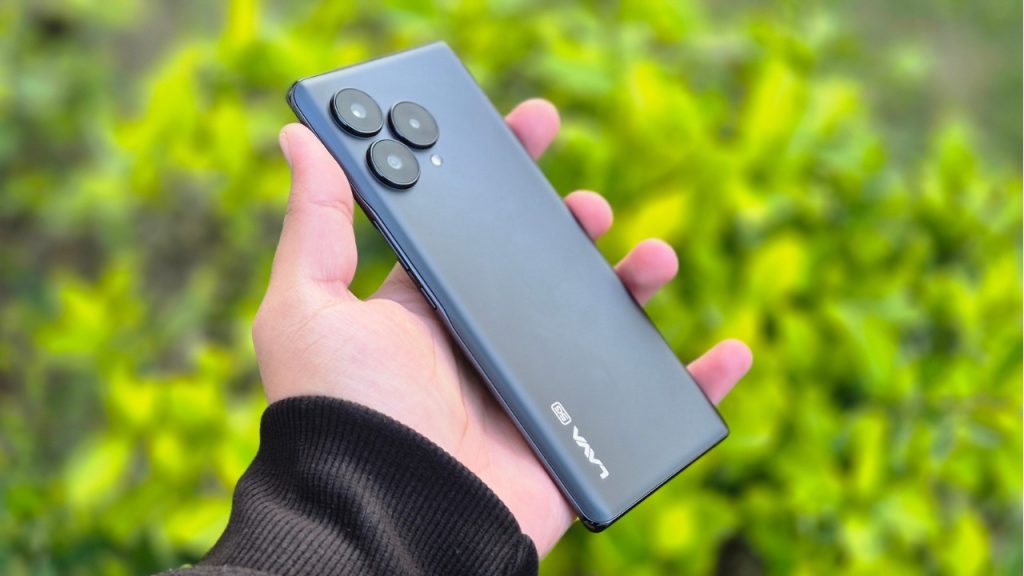
lava phone hang solution

If you are using a Lava smartphone for a long period of time. Things which are quite obvious are phones getting hanged and performance starts to degrade. 

Possible Reasons: 

Running too many apps at the same time: We use many Apps on the phone in one go. After switching to another App, earlier Apps run in the background. As a result, much of the resources or RAM is being used and in turn it slows down the phone. 

Leaving apps running in the background: Always make sure to close all apps running in the background. As, it gets stored and executed by RAM and if your phone has RAM of up to 4GB. Much of its resources are being used by OS & Opened Apps. 

Internal Storage Full: Always try to have 20 percent of internal storage free. In today’s world, almost every lava smartphone user has messaging apps like WhatsApp and it stores media files. Over a period of time, it can account for most of the internal storage space resulting in slow performance and hanging. 

Software Updates: it is recommended to install official updates for lava smartphones. As it improves performance, stability and security of the device. Ignoring software updates can lead to hanging, as new updates are bug free.

Using Phone during charging: can lead to heat up device & hang. 

Malware or Virus: if you are downloading movies or cracked software from the internet. It usually leads to malware and viruses and can degrade the performance. 

Hardware issue: can be repaired only by repairing or replacing the faulty parts. For example if you are not using the official charger to charge the phone. Then, over the period of time the battery will degrade and the charging port can be damaged. 

Overheating: if a device is getting heated then it’s appropriate to not use the device as it will shut down on its own to protect its components. 

Possible Solution: 

Restart the Phone: A simple restart frees up ram as it kills all apps in the background. After getting started, all of the resources are free to use. 

Internal Storage: make sure to keep 25% of internal storage free as it ensures smooth functioning of the phone. 

Unused Apps: Uninstall unused apps. It will increase storage which is free to be used. 

Disable Background Apps: Disabling or closing background apps free up resources. It ensures smooth functioning of the lava smartphones. 

Update OS & Apps: if any official update are released for your device then make sure to install it as the new patch has been designed for stability, increasing performance & security of the device. 

Factory Reset: is the process of restoring the phone to its original state. It deletes all of the data within the phone. 

Check for Malware or Virus: It is always good to perform a scan of your lava phones using reputable Malware or virus scanner. One quick tip to identify malware, ads will popup of its own. 

Flashing: is the ultimate solution to get rid of any software issue, malware and viruses from the device. It reinstall Android OS on the device and the device gets reset to its original state. 

Clear cache: can free up space, improve performance and fix app problems. In order to clear the cache, you have to open the App from settings. Then, open the app and then clear the cache.


Filed Under: How To

Hanging issue on Your Phone??? 10 Solutions

April 22, 2024 Leave a Comment

mobile hang issue

We all are using android phones and it has become an essential part of our daily life. While, we rely on our phone for day to day tasks. According to reports from Datareportal, we Indians spend around 4 hours 5 minutes on mobile phones.

If a phone hangs often, it can result in anxiety and frustration. As it can negatively impact the day to day task.

Why Android Phone Hangs?

Running too many apps at the same time: We use tons of apps in our day to day life based on our requirements. One issue with android phones is that, when we open another app. The previous app does not get closed on its own. Running more apps at a time can use much of its resources. 

Leaving apps running in the background: the ideal situation is to close apps after being used. But, that is not the case and all of the apps which have been used keep running in the background as it uses most of its resources.

Ignoring software updates: Whenever official updates are being rolled out for devices, always install. As it improves performance and stability of the device.

Phone Storage: If your phone storage is almost full, it can be due to photos, videos and other media files stored on the device. If most of the storage is used, it will slow down the phone and can lead to hang. 

Using Phone during Charging: can lead to heating issues and cause hang. 

Outdated operating System: Not all phone manufacturers provide lifetime OS updates, most of them provide 2-3 Android version updates. So, over a period of time phone android OS will get outdated and phones will not be able to provide smooth functioning of new apps. 

Malware or virus: if you are downloading files from torrents or using cracked versions of any tools. It can lead to unwanted malware and viruses which will cause chaos and the phone will not work smoothly.

Hardware issues: if your phone has software issues, 9it can be sorted out by reinstalling android os. But, Hardware issues can be repaired only by replacing or repairing parts. Even a single hardware issue can result in hanging. 

Poorly Designed Apps: It is recommended to download apps from playstore. If you are using any 3rd party apps, it can result in hanging lead to slow down its performance. 

Overheating: If a phone is overheating, it will automatically shutdown to protect its components. 

Solution: to resolve the issue

Restart the phone: A simple restart resolves most of the issue as it clears caches and frees up resources as it automatically kills apps running in the background. 

Free up storage space: In today’s world, we use social media and Whatsapp. Over a period of time, they account for most of the storage on the device. Either clear cache and remove media within the apps. Make sure to have 20% space free, it will optimise performance of the device. 

Uninstall unused Apps: Now-a-days Android suggests us to remove unused apps on the phones. As it allocated more free storage increasing its performance. 

Disable background apps: If you are not using an app and it is running in the background. Make sure to close it, as it frees up resources and enhances performance. 

Update OS & Apps: Updating your device to the latest OS increases stability and performance of the device. Updating Apps to its latest version adds new features and makes it bug free. As any update let it be OS or Apps is developed with its predecessors bugs in mind. 

Factory reset: is the process of restoring a phone to its original state. As it deletes all of the data. This process works 9 out of 10 times. 

Check for Malware or virus: A malware or virus disrupts the smooth functioning of the phone. Getting unlimited ads on the phone is a sign of malware. So use any reputable malware or antivirus to scan the internal & external storage of the phone. 

Flashing: is the process of reinstallation of Android OS. It solves 100 percent of the software issue but is hard to perform. 

Clear cache: can free up space, improve performance and fix app problems. In order to clear the cache, you have to open the App from settings. Then, open the app and then clear the cache.  

Power Saving mode: Most of the android phone has power saving mode. As soon as you enable it, it reduces resources used by the phone and improves battery performance. 

If none of the solutions resolve the issue, then you can visit any authorised mobile repairing shop. They can diagnose the issue and repair your phone to get rid of hanging issues. 


Filed Under: How To

Redmi Turbo 3 Flash File (Stock ROM)

April 22, 2024 Leave a Comment

All files are in premium section, purchase premium first (सभी फ़ाइलें प्रीमियम अनुभाग में हैं, पहले प्रीमियम खरीदें)

Download Redmi Turbo 3 Flash File:

  • peridot_global_images_OS2.0.206.0.VNPMIXM_20251010.0000.00_15.0_global
  • peridot_in_global_images_OS2.0.204.0.VNPINXM_20251010.0000.00_15.0_in
  • peridot_global_images_OS2.0.205.0.VNPMIXM_20250905.0000.00_15.0_global
  • peridot_in_global_images_OS2.0.200.0.VNPINXM_20250716.0000.00_15.0_in_RMM
  • peridot_global_images_OS2.0.202.0.VNPMIXM_20250716.0000.00_15.0_global_RMM
  • peridot_in_global_images_OS2.0.103.0.VNPINXM_20250423.0000.00_15.0_in_RMM
  • peridot_global_images_OS2.0.103.0.VNPMIXM_20250423.0000.00_15.0_global_RMM
  • peridot_in_global_images_OS2.0.2.0.VNPINXM_20250110.0000.00_15.0_in_RMM
  • peridot_global_images_OS2.0.2.0.VNPMIXM_20250111.0000.00_15.0_global_RMM (Android 15)
  • peridot_global_images_OS1.0.12.0.UNPMIXM_20241211.0000.00_14.0_global_RMM
  • peridot_in_global_images_OS1.0.10.0.UNPINXM_20241211.0000.00_14.0_in_RMM
  • peridot_in_global_images_OS1.0.8.0.UNPINXM_20241118.0000.00_14.0_in_RMM
  • peridot_global_images_OS1.0.10.0.UNPMIXM_20241114.0000.00_14.0_global_RMM
  • peridot_global_images_OS1.0.8.0.UNPMIXM_20240911.0000.00_14.0_global_RMM
  • peridot_global_images_OS1.0.7.0.UNPMIXM_20240805.0000.00_14.0_global_RMM
  • peridot_in_global_images_OS1.0.6.0.UNPINXM_20240918.0000.00_14.0_in_RMM
  • peridot_in_global_images_OS1.0.5.0.UNPINXM_20240805.0000.00_14.0_in
  • peridot_global_images_OS1.0.7.0.UNPMIXM_20240805.0000.00_14.0_global
  • peridot_in_global_images_OS1.0.4.0.UNPINXM_20240704.0000.00_14.0_in
  • peridot_global_images_OS1.0.5.0.UNPMIXM_20240709.0000.00_14.0_global
  • peridot_in_global_images_OS1.0.3.0.UNPINXM_20240605.0000.00_14.0_in
  • peridot_global_images_OS1.0.4.0.UNPMIXM_20240523.0000.00_14.0_global
  • peridot_in_global_images_OS1.0.2.0.UNPINXM_20240423.0000.00_14.0_in (Indian)
  • peridot_global_images_OS1.0.3.0.UNPMIXM_20240423.0000.00_14.0_global (Android 14)
  • peridot_images_OS1.0.7.0.UNPCNXM_20240412.0000.00_14.0_cn
  • Xiaomi Flash tool

Note: You will need Authorized tool to Flash and Remove Mi Account.

How to Flash Redmi Turbo 3:

Download Redmi Turbo 3 Flash File
1- Connect phone through USB cable to PC and unplug battery.
2- Short Test Point and connect battery.
3- Under Device Manger, port of Qualcomm HS USB QDLoader 9008 port will appear.
4- Download & run MI Flash Tool
5- Place the Flash File on Desktop.
6- Assign the Folder path.
7- Click on refresh & then tap Flash button.

Filed Under: Android Flash File Database

Redmi Pad Pro Flash File (Stock ROM)

April 22, 2024 Leave a Comment

All files are in premium section, purchase premium first (सभी फ़ाइलें प्रीमियम अनुभाग में हैं, पहले प्रीमियम खरीदें)

Download Redmi Pad Pro Flash File:

  • dizi_in_global_images_OS2.0.204.0.VNSINXM_20251013.0000.00_15.0_in_RMM
  • dizi_global_images_OS2.0.204.0.VNSMIXM_20250930.0000.00_15.0_global_RMM
  • dizi_in_global_images_OS2.0.201.0.VNSINXM_20250705.0000.00_15.0_in_RMM
  • dizi_global_images_OS2.0.201.0.VNSMIXM_20250630.0000.00_15.0_global_RMM
  • dizi_in_global_images_OS2.0.5.0.VNSINXM_20250511.0000.00_15.0_in_RMM
  • dizi_global_images_OS2.0.5.0.VNSMIXM_20250508.0000.00_15.0_global_RMM
  • dizi_in_global_images_OS2.0.1.0.VNSINXM_20241216.0000.00_15.0_in__RMM
  • dizi_global_images_OS2.0.1.0.VNSMIXM_20241216.0000.00_15.0_global_RMM (Android-15)
  • dizi_in_global_images_OS1.0.10.0.UNSINXM_20250102.0000.00_14.0_in__RMM
  • dizi_global_images_OS1.0.10.0.UNSMIXM_20241224.0000.00_14.0_global_RMM
  • dizi_in_global_images_OS1.0.6.0.UNSINXM_20241031.0000.00_14.0_in
  • dizi_global_images_OS1.0.8.0.UNSMIXM_20241018.0000.00_14.0_global
  • dizi_global_images_OS1.0.7.0.UNSMIXM_20240820.0000.00_14.0_global
  • dizi_in_global_images_OS1.0.5.0.UNSINXM_20240820.0000.00_14.0_in
  • dizi_in_global_images_OS1.0.4.0.UNSINXM_20240723.0000.00_14.0_in
  • dizi_in_global_images_OS1.0.3.0.UNSINXM_20240619.0000.00_14.0_in
  • dizi_global_images_OS1.0.2.0.UNSMIXM_20240524.0000.00_14.0_global (Android-14)
  • dizi_images_OS1.0.6.0.UNSCNXM_20240414.0000.00_14.0_cn
  • Xiaomi Flash tool

Note: You will need Authorized tool to Flash and Remove Mi Account.

How to Flash Redmi Pad Pro:

Download Redmi Pad Pro Flash File
1- Connect phone through USB cable to PC and unplug battery.
2- Short Test Point and connect battery.
3- Under Device Manger, port of Qualcomm HS USB QDLoader 9008 port will appear.
4- Download & run MI Flash Tool
5- Place the Flash File on Desktop.
6- Assign the Folder path.
7- Click on refresh & then tap Flash button.

Filed Under: Android Flash File Database

Download All iPhone IPSW Flash File (Stock ROM)

April 19, 2024 Leave a Comment

As an iPhone mobile repair expert, I understand the significance of IPSW (iPhone Software) flash files in the realm of iPhone repair and maintenance. IPSW files contain the operating system, firmware, and other essential software components necessary for the functioning of iPhones. These files are invaluable when it comes to restoring or updating an iPhone’s software, especially in cases of malfunction or damage. Whether it’s fixing software glitches, addressing performance issues, or recovering from a failed update, having access to the appropriate IPSW file is crucial for successful repairs. With the right expertise and tools, utilizing IPSW flash files allows us to efficiently troubleshoot and resolve a wide array of iPhone issues, ensuring that our customers’ devices are operating at their best.

  • iPhone Flash Tool 
iPhone Mobile Flash File
Apple iPhone 15 Pro Max Download
Apple iPhone 15 Pro Download
Apple iPhone 15 Plus Download
Apple iPhone 15 Download
Apple iPhone 14 Pro Max Download
Apple iPhone 14 Pro Download
Apple iPhone 14 Plus Download
Apple iPhone 14 Download
Apple iPhone SE 3rd Gen Download
Apple iPhone 13 Download
Apple iPhone 13 Mini Download
Apple iPhone 13 Pro Max Download
Apple iPhone 13 Pro Download
Apple iPhone 12 Pro Download
Apple iPhone 12 Pro Max Download
Apple iPhone 12 Mini Download
Apple iPhone 12 Download
Apple iPhone SE 2020 Download
Apple iPhone 11 Pro Download
Apple iPhone 11 Download
Apple iPhone 11 Pro Max Download
Apple iPhone XR Download
Apple iPhone XS Download
Apple iPhone XS Max Download
Apple iPhone X Global Download
Apple iPhone X GSM Download
Apple iPhone 8 Plus Global Download
Apple iPhone 8 Plus GSM Download
Apple iPhone 8 GSM Download
Apple iPhone 8 Global Download
Apple iPhone 7 Plus GSM Download
Apple iPhone 7 Plus Global Download
Apple iPhone 7 GSM Download
Apple iPhone 7 Global Download
Apple iPhone SE Download
Apple iPhone 6s+ Download
Apple iPhone 6s Download
Apple iPhone 6 Download
Apple iPhone 6+ Download
Apple iPhone 5s GSM Download
Apple iPhone 5c GSM Download
Apple iPhone 5s Global Download
Apple iPhone 5 Global Download
Apple iPhone 5 GSM Download


Filed Under: Android Flash File Database

Apple iPhone 5 GSM IPSW Flash File (Stock ROM)

April 18, 2024 Leave a Comment

Download Apple iPhone 5 GSM IPSW Flash File:

  • iPhone_4.0_32bit_10.3.4_14G61_Restore
  • iTune Flash Tool

How to Restore Apple iPhone 5 GSM using itunes:

  • Install iTunes on PC.
  • Use USB cable to connect phone to PC.
  • Connect Apple iPhone 5 GSM to pc holding Home Key, while connecting phone it should vibrate.
  • Choose Restore iPhone on itune, it will erase all the data and will install the firmware.
  • Hold Shift Key and select ipsw file.
  • Click start, When flashing is completed plug out usb cable & boot phone holding power key.

Filed Under: Android Flash File Database

  • « Go to Previous Page
  • Page 1
  • Interim pages omitted …
  • Page 279
  • Page 280
  • Page 281
  • Page 282
  • Page 283
  • Interim pages omitted …
  • Page 924
  • Go to Next Page »

Primary Sidebar

Join Free Demo Classes!!!

Free demo classes
demo group

Recent Posts

  • Infinix Note 50x 5G X6857 Flash File (Stock ROM)
  • Vivo Y200e PD2341 UFS Dump File
  • Sasmung M05 SM-M055F Flash File (Stock ROM)
  • Samsung M14 5G SM-M146B UFS Dump File
  • Samsung A14 5G SM-A146B UFS Dump File

RMM Other website & App

training.repairmymobile.co

RMM Android App

Join Telegram Group

Repair My Mobile

Our Services

Privacy Policy

Term & Condition

Contact us

About us

Sitemap

Join Our Community

Facebook Youtube Instagram Linkedin Twitter Whatsapp

Contact

sidhartha@repairmymobile.co

+91-9060 2999 19

Mon-Sat:10:00am to 6.00pm

Official QR Code

Official Payment no.

Course: 8935939022

Call/WhatsApp: 91-893-593-9022

Paypal: vijaytech89@gmail.com


Note: Repair My Mobile
Official Payment no.

Bakarganj, Patna, Bihar 800004

Payment Partner

Copyright © 2025 RMM. Designed by RMM All rights reserved.

Click to Chat