• Skip to primary navigation
  • Skip to main content
  • Skip to primary sidebar
RMM logo 2
Get All Flash File
Menu
  • Home
  • Training
    • Offline Training
      • Kolkata
      • Kolhapur
      • Patna
    • L1: Basic Software & Hardware
    • L2: Advanced Software & Hardware
    • L3: Super Advanced UFS
    • iPhone Training
  • Solution
    • Flash File
    • Flash Tool
    • Driver
    • Combination
    • FRP
    • Root
    • Hard Reset
    • Hardware
  • Premium Flash File
    • Premium Flash File
    • Fast Download Server
    • Android Dump Files
  • Log In
  • Home
  • Training
    • Offline Training
      • Kolkata
      • Kolhapur
      • Patna
    • L1: Basic Software & Hardware
    • L2: Advanced Software & Hardware
    • L3: Super Advanced UFS
    • iPhone Training
  • Solution
    • Flash File
    • Flash Tool
    • Driver
    • Combination
    • FRP
    • Root
    • Hard Reset
    • Hardware
  • Premium Flash File
    • Premium Flash File
    • Fast Download Server
    • Android Dump Files
  • Log In

Intex Aqua 4.5 3G Stock ROM (Flash File)

Intex Aqua 4.5 3G Stock ROM (Flash File)

April 2, 2018

Download Intex Aqua 4.5 3G Flash File:

  • Intex Aqua 4.5 3G v04
  • SP Flash Tool
  • MTK Driver

How to Flash Intex Aqua 4.5 3G:

Install MTK Driver.
1- Download the package & Extract SP Flash tool.
2- Out of the icon appearing, Double click on Flash_tool.exe
3- it will launch the tool on your PC, Click on Scatter-Loading appearing on the Right side of the tool.
4- Now, assign the firmware which will be in form “Android_scatter.txt”.
5- Click on Download to start flashing.
6- Switch off your Mobile and Connect it to PC by pressing Volume down or Volume up key.
7- It will lead you to Successful Flashing
Filed Under: Android Flash File Database

LYF LS 5503 Stock ROM Firmware (Flash File)

April 2, 2018

Download LYF LS 5503 Flash File:

  • Lyf_Water_3_LS_5503_RJIO_IN_P839F50V1.0.0B08_DL
  • Lyf_Water_3_LS_5503_V11.0

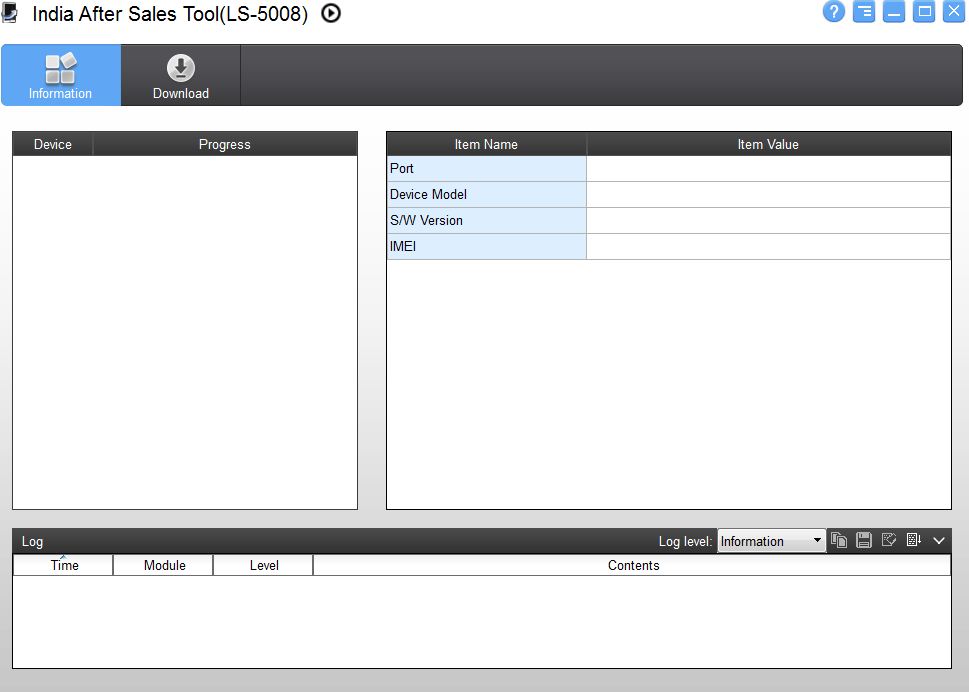
India After Sale

How to Flash LYF LS 5503:

Install Qualcomm Driver.
1- Run Indian After Sales tool.
2- Click on download.
3- Click on Browse under File Location and assign the folder of the Firmware.
4- Click on Start Downalod.
5- Connect Phone by holding both volume keys.

Filed Under: Android Flash File Database

Micromax Bharat 5 Plus Flash File (Stock ROM)

April 2, 2018

Download Micromax Bharat 5 Plus Flash File:

  • Micromax_MicromaxBharat5Plus_7.0.016.P1.1712131803
  • Micromax_Bharat5Plus_7.0.024.P1.1802081222
  • QGDP_Assembly_UpgradeTool_v3.1.8

How to Flash Micromax Bharat 5 Plus:

Only Qualcomm CPU with Firmware extension .cpb can be flashed using QGDP tool.
1- Download the latest QGDP tool.
2- Install ADB driver.
3- Now, connect mobile to PC.
4- Open device manager and confirm your mobile has been identified by PC.
5- Unzip tool and run the setup.
6- When tool interface appears, enter ase as password.
7- Click on Login to use the tool.
8- Click on Config and select CPU model.
9- Click on CPB file and assign the path of firmware.
10- Switch off Mobile, connect it to PC using USB cable.
11- Click on start.
12- Flashing starts and when completed Cell 0 will turn in to green color.

Video Tutorial:

Filed Under: Android Flash File Database

Micromax B5 Pro Flash File (Stock ROM)

April 2, 2018

Download Micromax B5 Pro Flash File to install Android OS on your phone.

Summary:

1- Firmware Information
2- Download
2.1: Firmware:a- Micromax_B5Pro_7.0.032.P1.1811202305.E5203M
b- Micromax_B5Pro_7.0.027.P1.1806071135.E5203M
c- Micromax_B5Pro_7.0.020.P1.1802081241.E5203M
d- Micromax_B5Pro_7.0.012.P1.1712281459.E5203M
e- Micromax B5 PRO Database

2.2: Flash Tool: QGDP-MTK1744-ASE-v.3.2.0
2.3: Driver: ADB Driver
3- How to Flash Micromax B5 Pro

1- Firmware Information: 

 Device Name Micromax B5 Pro
 OS  Android
 Version  Nougat
 SOC  Qualcomm
 Language  Multi Language
 Root Access  Not Rooted
 GApps  Included

2- Download

Firmware v032: Micromax_B5Pro_7.0.032.P1.1811202305.E5203M

Firmware v027: Micromax_B5Pro_7.0.027.P1.1806071135.E5203M

Firmware v018: Micromax_B5Pro_7.0.020.P1.1802081241.E5203M

Firmware v017: Micromax_B5Pro_7.0.012.P1.1712281459.E5203M

Firmware DB: Micromax B5 PRO Database

Flash Tool: QGDP-MTK1744-ASE-v.3.2.0

Driver: ADB Driver

3- How to Flash Micromax B5 PRO:

Install ADB Driver
1- Download the latest QGDP tool.
2- Install ADB driver.
3- Now, connect mobile to PC.
4- Open device manager and confirm your mobile has been identified by PC.
5- Unzip tool and run the setup.
6- When tool interface appears, enter Username=admin & Pass=123456 as password.
7- Click on Login to use the tool.
8- Click on Config and select CPU model.
9- Click on CPB file and assign the path of firmware.
10- Switch off Mobile, connect it to PC using USB cable.
11- Click on start.
12- Flashing starts and when completed Cell 0 will turn in to green color.

Filed Under: Android Flash File Database

Lenovo x3a40 Stock ROM (Flash File)

April 2, 2018

Download Lenovo x3a40 Flash File:

  • X3a40_S130_151122_ROW_QFIL
  • X3a40_S217_160623_ROW_QFIL
  • QPST tool.

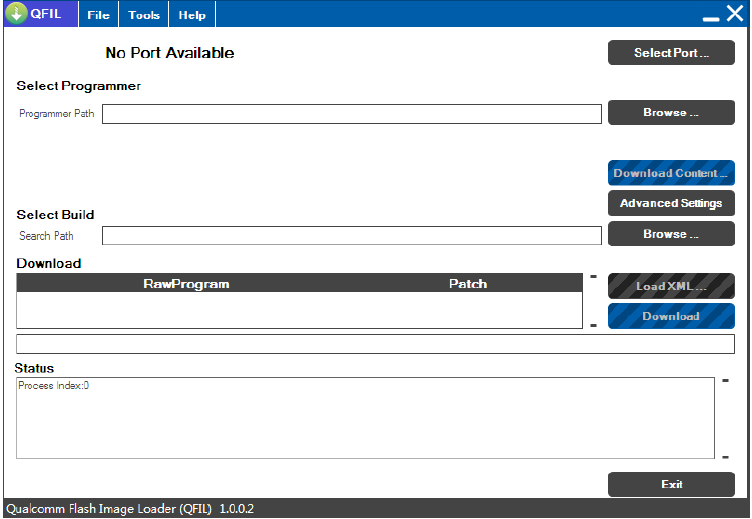
QFIL-tool

How to Flash Lenovo x3a40:

1- Download Lenovo x3a40 Flash file
2- Download QPST tool.
3- Install Qualcomm driver.
4- Run QPST tool.
5- Add new port (Check device manager)
6- Click Load XML and browse for rawprogram_unsparse.xml in Stock ROM file.
7- Click Load Patch and browse for patch0.xml in Stock ROM file folder.
8- Select the firmware by clicking in Browser of Search Path.
9- Select Download and wait for the flashing to be finish.

Filed Under: Android Flash File Database

Micromax C1A Flash File (Stock ROM)

April 2, 2018

Download Micromax C1A Flash File:

  • Micromax_C1A_7.0.015.P1.1801060425
  • QGDP_Assembly_UpgradeTool_v3.1.8

How to Flash Micromax C1A:

Only Qualcomm CPU with Firmware extension .cpb can be flashed using QGDP tool.
1- Download the latest QGDP tool.
2- Install ADB driver.
3- Now, connect mobile to PC.
4- Open device manager and confirm your mobile has been identified by PC.
5- Unzip tool and run the setup.
6- When tool interface appears, enter ase as password.
7- Click on Login to use the tool.
8- Click on Config and select CPU model.
9- Click on CPB file and assign the path of firmware.
10- Switch off Mobile, connect it to PC using USB cable.
11- Click on start.
12- Flashing starts and when completed Cell 0 will turn in to green color.

Video Tutorial:

Filed Under: Android Flash File Database

  • « Go to Previous Page
  • Page 1
  • Interim pages omitted …
  • Page 839
  • Page 840
  • Page 841
  • Page 842
  • Page 843
  • Interim pages omitted …
  • Page 923
  • Go to Next Page »

Primary Sidebar

Join Free Demo Classes!!!

Free demo classes
demo group

Recent Posts

  • Infinix Hot 30i X669D Flash File (Stock ROM)
  • Samsung A16 5G SM-A166P Flash File (Stock ROM)
  • Samsung M36 5G SM-M366B Flash File (Stock ROM)
  • Samsung M06 5G SM-M066B Flash File (Stock ROM)
  • Samsung F36 5G SM-E366B Flash File (Stock ROM)

RMM Other website & App

training.repairmymobile.co

RMM Android App

Join Telegram Group

Repair My Mobile

Our Services

Privacy Policy

Term & Condition

Contact us

About us

Sitemap

Join Our Community

Facebook Youtube Instagram Linkedin Twitter Whatsapp

Contact

sidhartha@repairmymobile.co

+91-9060 2999 19

Mon-Sat:10:00am to 6.00pm

Official QR Code

Official Payment no.

Course: 8935939022

Call/WhatsApp: 91-893-593-9022

Paypal: vijaytech89@gmail.com


Note: Repair My Mobile
Official Payment no.

Bakarganj, Patna, Bihar 800004

Payment Partner

Copyright © 2025 RMM. Designed by RMM All rights reserved.

Click to Chat