• Skip to primary navigation
  • Skip to main content
  • Skip to primary sidebar
RMM logo 2
Get All Flash File
Menu
  • Home
  • Training
    • Offline Training
      • Kolkata
      • Kolhapur
      • Patna
    • L1: Basic Software & Hardware
    • L2: Advanced Software & Hardware
    • L3: Super Advanced UFS
    • iPhone Training
  • Solution
    • Flash File
    • Flash Tool
    • Driver
    • Combination
    • FRP
    • Root
    • Hard Reset
    • Hardware
  • Premium Flash File
    • Premium Flash File
    • Fast Download Server
    • Android Dump Files
  • Log In
  • Home
  • Training
    • Offline Training
      • Kolkata
      • Kolhapur
      • Patna
    • L1: Basic Software & Hardware
    • L2: Advanced Software & Hardware
    • L3: Super Advanced UFS
    • iPhone Training
  • Solution
    • Flash File
    • Flash Tool
    • Driver
    • Combination
    • FRP
    • Root
    • Hard Reset
    • Hardware
  • Premium Flash File
    • Premium Flash File
    • Fast Download Server
    • Android Dump Files
  • Log In

Xiaomi Redmi Note 5 Flash File (Stock ROM)

Xiaomi Redmi Note 5 Flash File (Stock ROM)

April 27, 2018


This content is for Premium Files Membership Plan: 1 Month , Premium Files Membership Plan: 6 Month , Premium Files Membership Plan: 1 Year; Unlock Tool & FRP Training, and Fast Download Server: 1 Month members only.

Filed Under: Android Flash File Database, Fast Download Server, Premium Flash Files

Qualcomm USB Driver with Auto Installer (32/64 Bit)

April 26, 2018

All files are in premium section, purchase premium first (सभी फ़ाइलें प्रीमियम अनुभाग में हैं, पहले प्रीमियम खरीदें)

Qualcomm Driver can be installed on Windows PC using two methods and it Supports Both Windows 32 & 64 Bit. Work on all Windows like XP, 7, 8, 8.1, 10:

1- using the Auto installer. 

2- Manual Method

1- Using Auto Installer (One Click Installation)

Download Qualcomm Auto Installation Driver used to Flash any Qualcomm Devices.

After Installation of Qualcomm driver, Qualcomm Phones can be flashed using any of the Qualcomm tools.

Auto installer works both in 32 & 64 Bit windows.

  • Oppo MTK Driver
  • Qualcomm Auto Installation Driver : Mirror

How to Install Qualcomm Driver Auto Installer:

1- Download Driver.
2- Unzip it.
3- Setup is available for both 32-bit & 64-bit PC.
4-  Run Exe file.

Limitation: Mostly in 64 bit windows, Driver signature issue forbid the flashing. Driver signature related issue can be seen in the pic below:
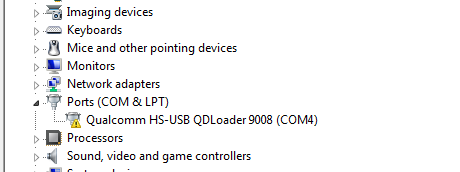
If after installation of Qualcomm driver, Port is like above as in the pic. Then, it is a driver signature issue.

Manual installation of Qualcomm Driver is required to get rid of the Driver Signature issue.

2- Manual Method

How to Install Qualcomm Driver Manually:

  • Qualcomm Manual Driver 

1- Download the driver and connect phone holding both Volume key or by sorting EDL point.

2- Right Click on QHSUSB_BULK and select Update Driver Software.

3- Click on Browse My Computer For Driver Software.
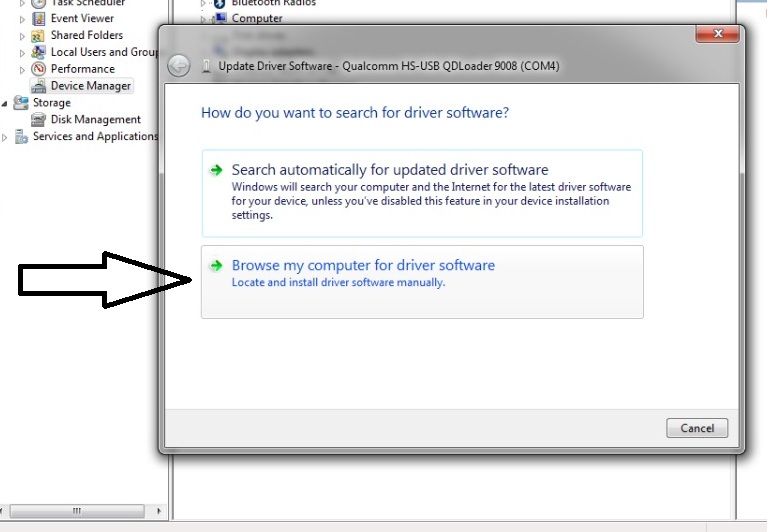
4- Select Let Me Pick From a List Of Device Driver on My Computer.
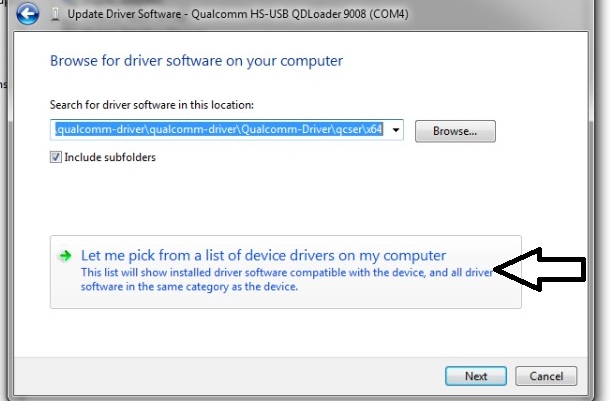
5- Click on Have Disk. 
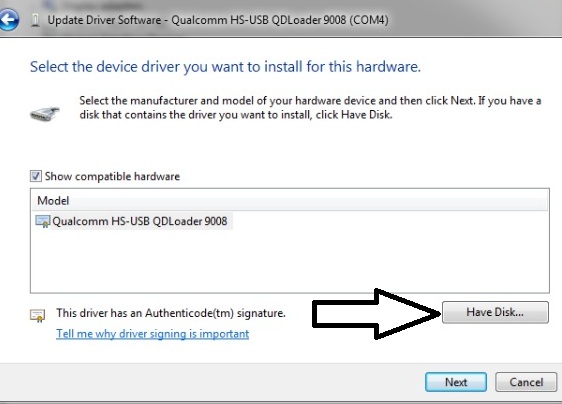
6- Choose Browse.
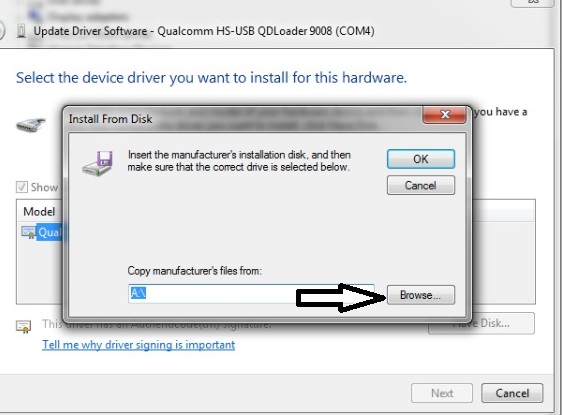
7- Assign the Folder path of Qualcomm Driver Manual. We had placed the file on desktop.
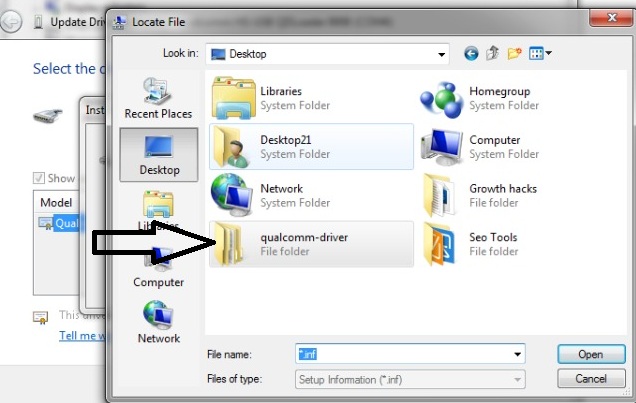
8- Depending upon your System Properties, Choose x86 bit for 32 bit os & x64 bit for 64 bit os.
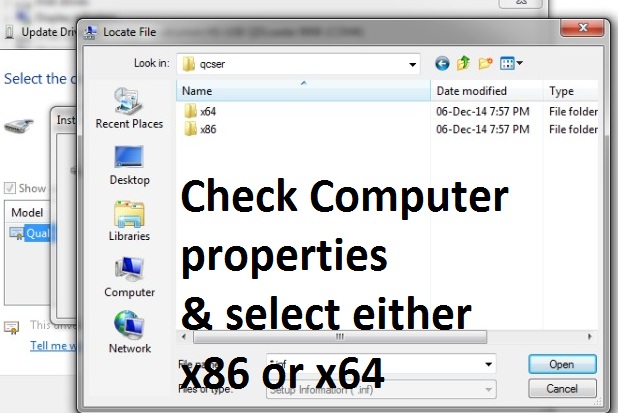
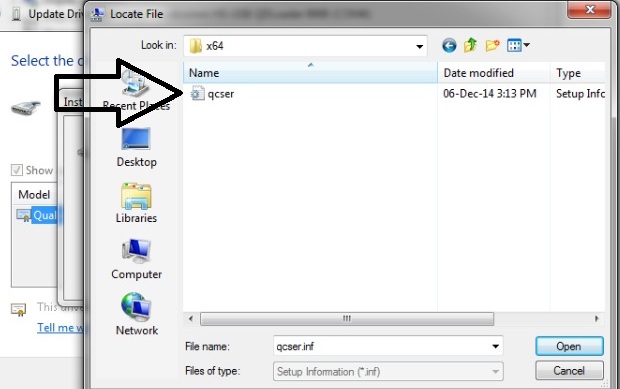
9- Now Open 64 bit Folder for 64 bit os & select qcser file.
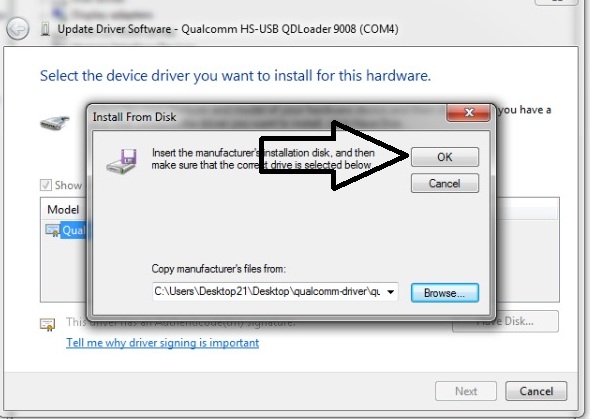
10- Click on Ok.
11- Select Qualcomm HS-USB QDLoader 9008 & Click Next.
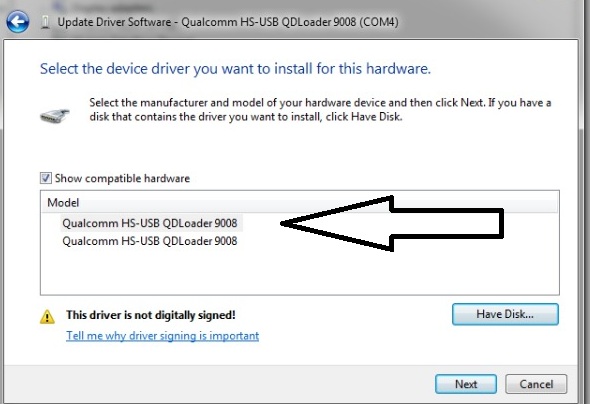
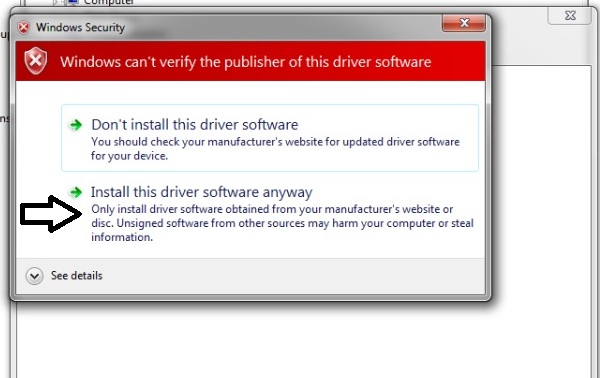
12- Select Install this Driver Software Anyway.
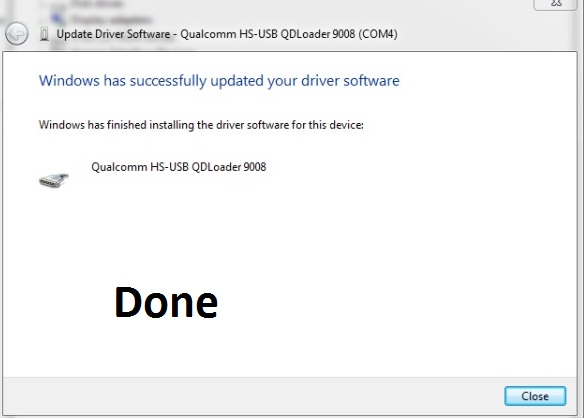
13- Installation Done.
Filed Under: Driver

SPD Driver Auto Installer (One Click Installation)

April 26, 2018

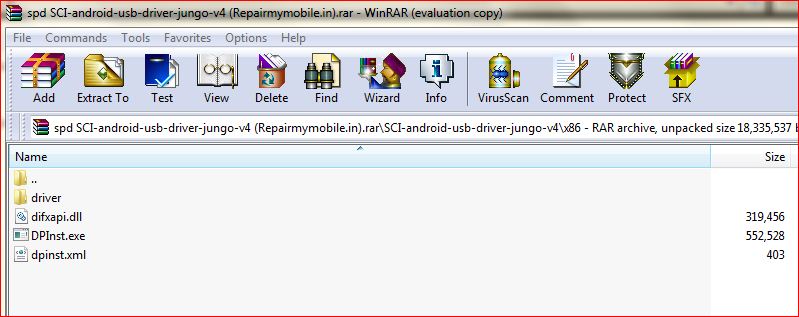
Download SPD Auto Installation Driver used to Flash any Spreadtrum Devices.

After Installation of SPD driver, then only Mobile can be flashed using SPD Flash Tool.
  • SPD Auto Installtion Driver : Mirror

How to Install SPD Driver:

SPD Auto Installer

1- Download Driver.
2- Unzip it.
3- Setup is available for both 32-bit & 64-bit PC.
4-  Run DPinst.

Filed Under: Driver

MTK Driver Auto Installer (One Click Installation)

April 26, 2018

All files are in premium section, purchase premium first (सभी फ़ाइलें प्रीमियम अनुभाग में हैं, पहले प्रीमियम खरीदें)

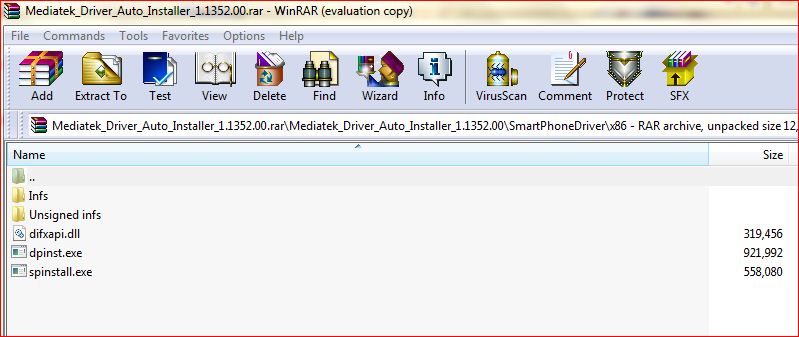
Download MTK Auto Installation Driver used to Flash any Mediatek Devices.

After Installation of MTK driver, then only Mobile can be flashed using SP Flash Tool.
  • QcomMTK_Oplus_USB_Driver-Setup-4.0.1.6-RMM: Download | Mirror
  • MTK Auto Installation Driver : Mirror
  • MTK_USB_All_v1.0.8: Download

How to Install MTK Driver:

Mtk Auto Driver Download

1- Download Driver.
2- Unzip it.
3- Setup is available for both 32-bit & 64-bit PC.
4-  Run both DPinst & SPinstall.

Filed Under: Driver

Samsung SM-G950F Flash File (4 File Stock ROM)

April 24, 2018

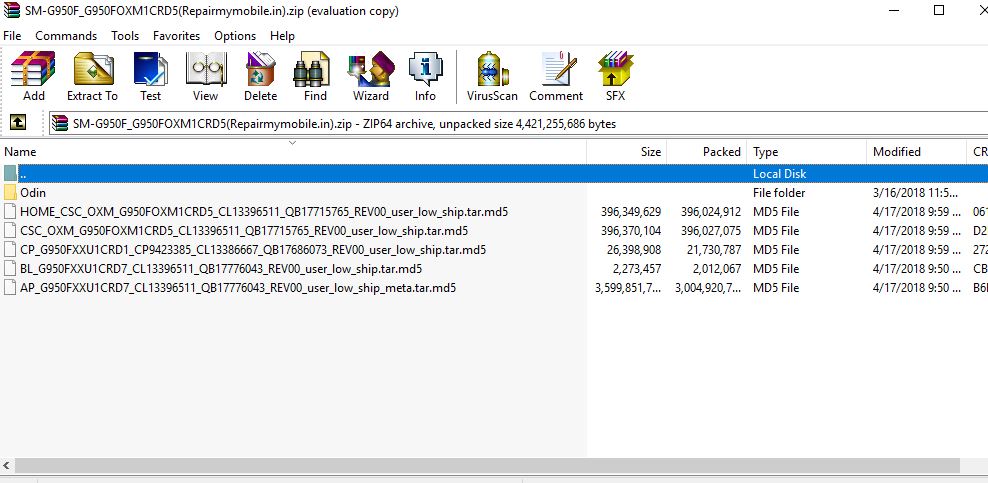
Download Samsung SM-G950F Flash File:

  • G950FXXUCDUK1  (Binary 12)
  • G950FXXSBDUA5  (Binary 11)
  • G950FXXSADTI4    (Binary 10)
  • G950FXXU9DTG3 (Binary 9)
  • G950FXXS8DTCB  (Binary 8)
  • G950FXXS7DTB5   (Binary 7)
  • G950FXXS6DTA5
  • G950FXXU5DSJE
  • G950FXXS4DSE8
  • G950FXXU3CRHC
  • G950FXXU2CRED Latest 2018 May Update
  • G950FOXM1CRD5 Latest 2018 April Update
  • Odin tool
  • Samsung Kies

samsung G950F Flash File


How to Flash Samsung SM-G950F:

Make sure your device is atleast 30 percent charged to perform flashing.
• Switch off the mobile
• Press the Power + volume down + home button
• Android symbol will appear, now press volume up to enter into the download mode
• Now open the Odin flash tool and follow the steps as shown in the video
• Select Samsung SM-G950F.
• Select the Odin tool and open it
• Select BL file
• Click AP or PDA then select AP File
• Click CP and select Modem File.
• Click CSC and select CSC File.
• After selection mobile will get detected automatically
• Now click start on system & installation is in process
• After installation mobile switch ON of its own.

Filed Under: Android Flash File Database

Samsung SM-G611F (4 File) Flash File (Stock ROM)

April 24, 2018

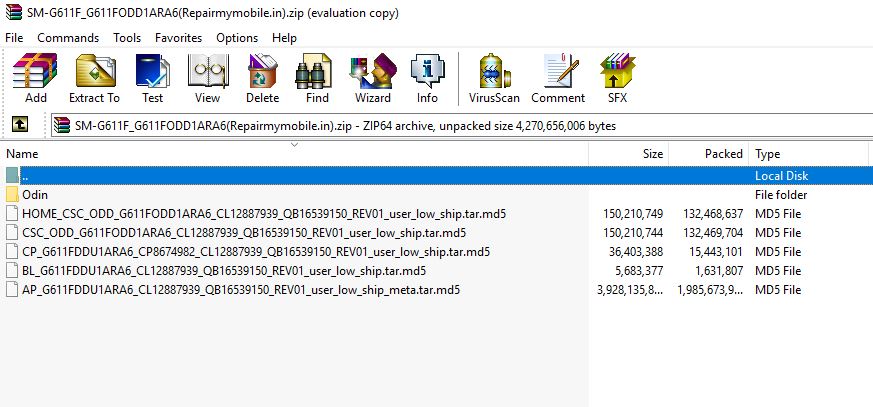
Download Samsung SM-G611F Flash File:

  • G611FFDDU1CSJ1
  • G611FDDU1BSA2  2019 January
  • SM-G611FDDU1ARD3 Latest 2018 April Update
  • SM-G611FODD1ARA6 Latest 2018 January Update
  • Odin tool
  • Samsung Kies

Samsung SM-G611F Flash File

How to Flash Samsung SM-G611F:

Make sure your device is atleast 30 percent charged to perform flashing.
• Switch off the mobile
• Press the Power + volume down + home button
• Android symbol will appear, now press volume up to enter into the download mode
• Now open the Odin flash tool and follow the steps as shown in the video
• Select Samsung SM-G610f
• Select the Odin tool and open it
• Select BL file
• Click AP or PDA then select AP File
• Click CP and select Modem File.
• Click CSC and select CSC File.
• After selection mobile will get detected automatically
• Now click start on system & installation is in process
• After installation mobile switch ON of its own.

Filed Under: Android Flash File Database

  • « Go to Previous Page
  • Page 1
  • Interim pages omitted …
  • Page 756
  • Page 757
  • Page 758
  • Page 759
  • Page 760
  • Interim pages omitted …
  • Page 924
  • Go to Next Page »

Primary Sidebar

Join Free Demo Classes!!!

Free demo classes
demo group

Recent Posts

  • Sasmung M05 SM-M055F Flash File (Stock ROM)
  • Samsung M14 5G SM-M146B UFS Dump File
  • Samsung A14 5G SM-A146B UFS Dump File
  • Sasmung Galaxy F05 SM-E055F Flash File (Stock ROM)
  • Samsung Galaxy M55s SM-M558B Flash File (Stock ROM)

RMM Other website & App

training.repairmymobile.co

RMM Android App

Join Telegram Group

Repair My Mobile

Our Services

Privacy Policy

Term & Condition

Contact us

About us

Sitemap

Join Our Community

Facebook Youtube Instagram Linkedin Twitter Whatsapp

Contact

sidhartha@repairmymobile.co

+91-9060 2999 19

Mon-Sat:10:00am to 6.00pm

Official QR Code

Official Payment no.

Course: 8935939022

Call/WhatsApp: 91-893-593-9022

Paypal: vijaytech89@gmail.com


Note: Repair My Mobile
Official Payment no.

Bakarganj, Patna, Bihar 800004

Payment Partner

Copyright © 2025 RMM. Designed by RMM All rights reserved.

Click to Chat