• Skip to primary navigation
  • Skip to main content
  • Skip to primary sidebar
RMM logo 2
Get All Flash File
Menu
  • Home
  • Training
    • Offline Training
      • Kolkata
      • Kolhapur
      • Patna
    • L1: Basic Software & Hardware
    • L2: Advanced Software & Hardware
    • L3: Super Advanced UFS
    • iPhone Training
  • Solution
    • Flash File
    • Flash Tool
    • Driver
    • Combination
    • FRP
    • Root
    • Hard Reset
    • Hardware
  • Premium Flash File
    • Premium Flash File
    • Fast Download Server
    • Android Dump Files
  • Log In
  • Home
  • Training
    • Offline Training
      • Kolkata
      • Kolhapur
      • Patna
    • L1: Basic Software & Hardware
    • L2: Advanced Software & Hardware
    • L3: Super Advanced UFS
    • iPhone Training
  • Solution
    • Flash File
    • Flash Tool
    • Driver
    • Combination
    • FRP
    • Root
    • Hard Reset
    • Hardware
  • Premium Flash File
    • Premium Flash File
    • Fast Download Server
    • Android Dump Files
  • Log In

Itel A14 Flash File (Stock ROM)

Itel A14 Flash File (Stock ROM)

April 2, 2019

Download Itel A14 Flash File: Make Sure match model of Itel first(SA215, SA216,SA217) and download file.

  • A14-SA216-10-OP-V014-20220705
  • A14-SA216-10-OP-V013-20220515
  • A14-SA216-10-OP-V011-20220328
  • A14-Max-SA217-8.1-OP-V021-20190521
  • A14-SA215MTN-8.1-ZA-MTN-L-V014-20210802
  • A14-SA216-10-OP-V010-20210712
  • A14-SA215-8.1-OP-V031
  • SPD Flash tool.

How to Flash Itel A14:

Install SPD Driver
1- Download the package & Extract Flash tool.
2- Out of the icon appearing, Double click on UpgradeDownload.exe.
3- It will Launch the tool on PC.
4- Click on Load Packed button & Select the Firmware with extension .pac at end.
5- Click on Downloading button which is at third position.
6- Switch off your Mobile & connect it to PC using Volume down key.
7- It will lead you to Successful flashing.

Filed Under: Android Flash File Database

Redmi Note 7 vs Asus Zenfone Pro M2: Quick Comparison

April 1, 2019

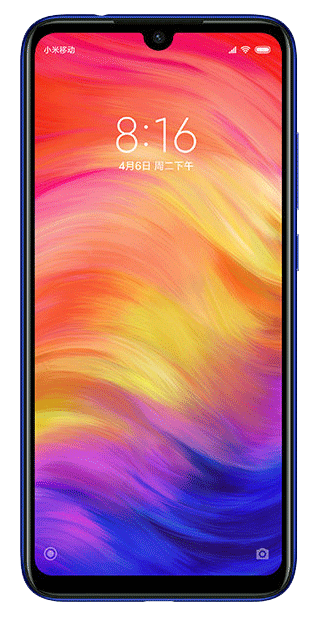
Xiaomi Redmi Note 7 and Asus Zenphone Max Pro M2  both are mid-range smartphones with a combination of powerful processor and stunning camera.

Both Zenfone Max Pro M2 and Redmi Note 7 are powered by Qualcomm® Snapdragon™ 660 AIE Processor which delivers impressive speed for an incredibly smooth and responsive gaming experience.

Redmi Note 7 sports a 12MP + 2MP AI Dual rear camera and Zenfone Max Pro M2 sports 12MP Sony IMX486 Sensor + 5MP Dedicated Depth Sensor. Both the smartphones come with13MP selfie camera, which helps you to click the perfect photo even in low-light conditions.

Redmi Note 7 comes with a huge 4000 mAh high capacity battery with Qualcomm®️ Quick Charge™️ 4 Technology, where Zenfone Max Pro M2 comes with bigger 5000 mAh 2 Day+ battery.

Both the devices are available in 32 GB & 64 GB storage variants.

The price of Xiaomi Redmi Note 7 & Asus Zenfone Max Pro M2 starts from Rs. 9999.

Display: 

Asus Zenphone Max Pro M2 has a display size of 6.26-inch IPS LCD display with aspect ration of 19:9 corning by Gorilla glass v6.

Screen resolution of 2280 x 1080 pixels. It has a Notch Display.

Xiaomi Redmi Note 7 has a display size of 6.3 inch IPS LCD display with an aspect ratio of 19.5:9 corning by gorilla glass v5.

Screen resolution of 2340 x 1080 pixels. It comes with the Waternotch display.

Out of the two, Redmi note 7 has a wide display size but Asus Zenphone Max pro M2 is the only phone which has the latest Gorilla glass technology under a price tag of Rs. 9999.

RAM/ROM: 

Asus Zenphone Max Pro M2 comes in three different variants but the one under a price tag of Rs.9999 has RAM of 3 GB with 32 GB ROM which can be extended via. microSD card slot and supports 2 TB additional space.

Xiaomi Redmi Note 7 also comes in three variants and one with the price tag of Rs.9999 has RAM of 3 GB with 32 GB ROM which can be extended via. microSD card upto 512GB.

Out of the two, both have the same features but Zenphone Max Pro M2 has microSD support of 2 TB.

OS/ SIM Slot/ Network Supported: 

Asus Zenphone Max Pro M2 comes out of the box running Android v8.1 and will receive Android Pie v9.0 updated by mid of April 2019. It has dual nano sim supports and both the network has Volte.

Xiaomi Redmi Note 7 comes out of the box running Android Pie v9.0. It has dual sim supports and both the network has Volte Feature.

Performance: 

Both the phone runs on Qualcomm Snapdragon 660 MSM8956 Octa-core processor.

Asus Zenphone Max Pro M2 clocked at 1.95-GHz while Redmi Note 7 at 2.2-GHz.

Camera: 

Both the Smartphone has 13 MP Selfie Camera.

While on the back, Asus Zenphone Max Pro M2 has 12MP Sony IMX486 Sensor + 5MP Dedicated Depth Sensor and Xiaomi Redmi Note 7 has 12MP + 2MP AI Dual camera. Both have LED flash with Autodetect Face detection.

Connectivity: 

Connectivity includes WiFi, Bluetooth, Hotspot, GPS & USB Connectivity

Battery & Ergonomics:  

Asus Zenphone Max Pro M2 has a marathon battery of 5000 mAh and weighs 175 g. It is available in two color variants i.e Blue & Titanium.

While Redmi Note 7 has been backed by 4000 mAh battery and weighs 185 g. It is available in three different color variants i.e. Onyx Black, Ruby Red, and Sapphire Blue.

Takeaway:

Xiaomi Phone gets overheated most of the time while the Asus Zenphone Max Pro M2 does get overheated.

Both the phone runs PUBG smoothly.

Filed Under: Mobile

Oppo Find X Dual CPH1875 Flash File (Stock ROM)

April 1, 2019

Download Oppo Find X Dual CPH1875 Flash File:

  • CPH1875_11_A.11_181218

Download Latest File to Flash Oppo Find X Dual CPH1875 and it Requires Login credential to Flash.

How to Flash Oppo Find X Dual CPH1875:

Download Oppo Find X Dual CPH1875 Flash file
1- Download the Firmware package & run Flash tool.
2- Out of the icon appearing, Double click on MSM Download Tool. Enter Login Credential.
3- it will launch the tool on your PC, Click on Start All.
4- Then it will verify for PC Memory Checksum.
5- Switch off your Mobile and Connect it to PC by pressing Volume down and Volume up key.
6- It will lead you to Successful Flashing.

Filed Under: Android Flash File Database

Oppo Find X CPH1871 Flash File (Stock ROM)

April 1, 2019

Download Oppo Find X CPH1871 Flash File:

  • CPH1871PUEX_11_F.43_210730
  • CPH1871EX_11_C.18_200108
  • CPH1871EX_11_A.12_190125

Download Latest File to Flash Oppo Find X CPH1871 and it Requires Login credential to Flash.

How to Flash Oppo Find X CPH1871:

Download Oppo Find X CPH1871 Flash file
1- Download the Firmware package & run Flash tool.
2- Out of the icon appearing, Double click on MSM Download Tool. Enter Login Credential.
3- it will launch the tool on your PC, Click on Start All.
4- Then it will verify for PC Memory Checksum.
5- Switch off your Mobile and Connect it to PC by pressing Volume down and Volume up key.
6- It will lead you to Successful Flashing.

Filed Under: Android Flash File Database

Oppo AX5 CPH1851 Flash File (Stock ROM)

April 1, 2019

Download Oppo AX5 CPH1851 Flash File:

  • CPH1851EX_11_A.15_191230
  • CPH1851EX_11_A.07_190128

Download Latest File to Flash Oppo AX5 CPH1851 and it Requires Login credential to Flash.

How to Flash Oppo AX5 CPH1851:

Download Oppo AX5 CPH1851 Flash file
1- Download the Firmware package & run Flash tool.
2- Out of the icon appearing, Double click on MSM Download Tool. Enter Login Credential.
3- it will launch the tool on your PC, Click on Start All.
4- Then it will verify for PC Memory Checksum.
5- Switch off your Mobile and Connect it to PC by pressing Volume down and Volume up key.
6- It will lead you to Successful Flashing.

Filed Under: Android Flash File Database

Oppo CPH1903 Flash File (Stock ROM)

April 1, 2019

Download Oppo CPH1903 Flash File:

  • CPH1903EX_11_A.17_191210
  • CPH1903EX_11_A.09_190225

Download Latest File to Flash Oppo CPH1903 and it Requires Login credential to Flash.

How to Flash Oppo CPH1903:

Download Oppo CPH1903 Flash file
1- Download the Firmware package & run Flash tool.
2- Out of the icon appearing, Double click on MSM Download Tool. Enter Login Credential.
3- it will launch the tool on your PC, Click on Start All.
4- Then it will verify for PC Memory Checksum.
5- Switch off your Mobile and Connect it to PC by pressing Volume down and Volume up key.
6- It will lead you to Successful Flashing.

Filed Under: Android Flash File Database

  • « Go to Previous Page
  • Page 1
  • Interim pages omitted …
  • Page 659
  • Page 660
  • Page 661
  • Page 662
  • Page 663
  • Interim pages omitted …
  • Page 923
  • Go to Next Page »

Primary Sidebar

Join Free Demo Classes!!!

Free demo classes
demo group

Recent Posts

  • Infinix Hot 30i X669D Flash File (Stock ROM)
  • Samsung A16 5G SM-A166P Flash File (Stock ROM)
  • Samsung M36 5G SM-M366B Flash File (Stock ROM)
  • Samsung M06 5G SM-M066B Flash File (Stock ROM)
  • Samsung F36 5G SM-E366B Flash File (Stock ROM)

RMM Other website & App

training.repairmymobile.co

RMM Android App

Join Telegram Group

Repair My Mobile

Our Services

Privacy Policy

Term & Condition

Contact us

About us

Sitemap

Join Our Community

Facebook Youtube Instagram Linkedin Twitter Whatsapp

Contact

sidhartha@repairmymobile.co

+91-9060 2999 19

Mon-Sat:10:00am to 6.00pm

Official QR Code

Official Payment no.

Course: 8935939022

Call/WhatsApp: 91-893-593-9022

Paypal: vijaytech89@gmail.com


Note: Repair My Mobile
Official Payment no.

Bakarganj, Patna, Bihar 800004

Payment Partner

Copyright © 2025 RMM. Designed by RMM All rights reserved.

Click to Chat