This content is for Premium Files Membership Plan: 1 Month , Premium Files Membership Plan: 6 Month , Premium Files Membership Plan: 1 Year; Unlock Tool & FRP Training, and Fast Download Server: 1 Month members only.

Download LYF JIO LF2406s Flash File to install KAIOS OS on your phone.
Note: Steps to Enable Diag Port in Jio Phones
Boot key: “None” Connect Phone in OFF mode
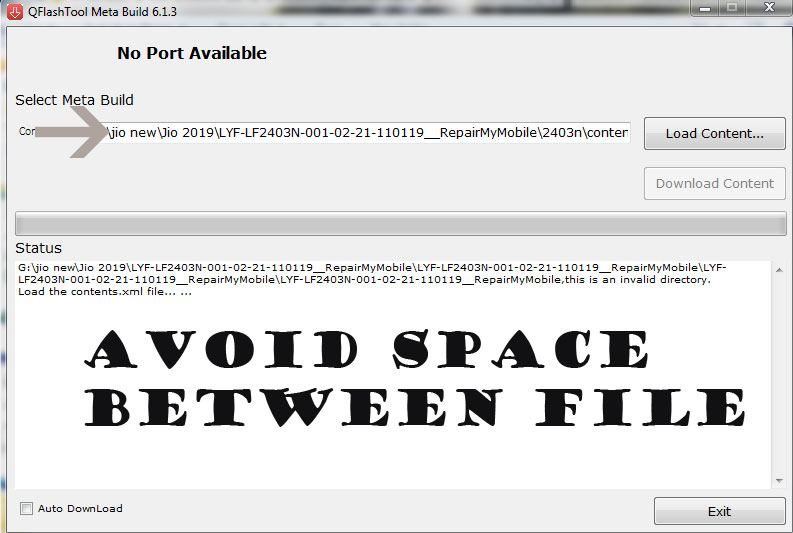
***Make sure no space is there in File Path.
1- Download LYF LF2406 Flash file
2- Download QPST tool.
3- Install Qualcomm driver.
4- Run QPST tool.
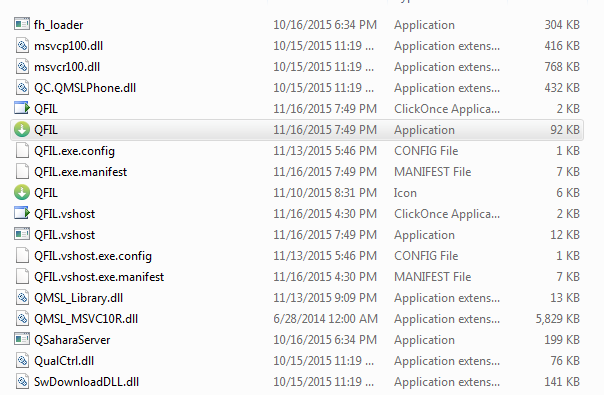
5- Add new port. Connect phone holding boot key. (Check device manager)
6- Click browse & select Stock ROM file.
7- Select Download and wait for the flashing to finish.
If flashing Fails or does not start, then there must be a gap between the words while choosing flash file. Rename the folder.
As in Qualcomm Flashing, there must be no gap in between the words.
jio new should be replaced by jio_new or jionew.
Download Moto G5 XT1677 Flash File:
1- Download Moto G5 XT1677 Flash File & Extract, Place Moto G5 XT1677 Bat file in Firmware folder.
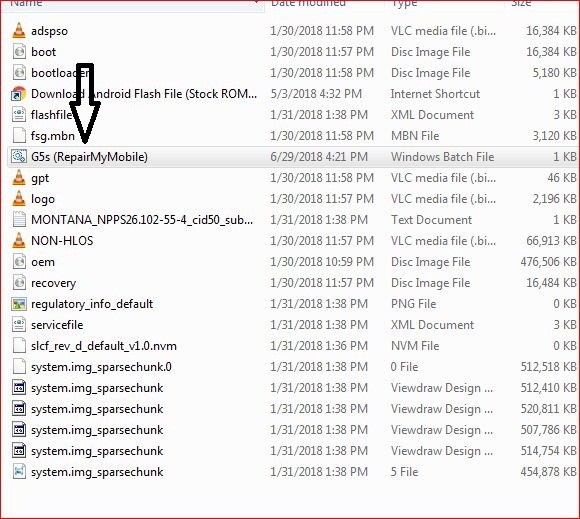
2- Install Moto Adb Tool.
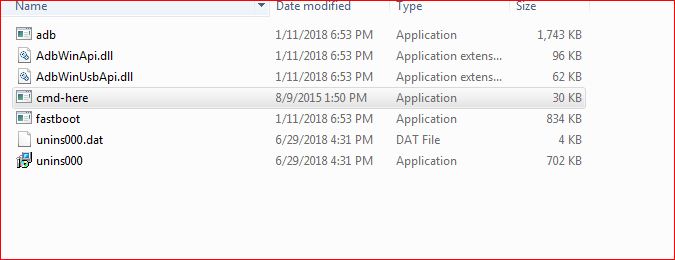
3- Now, Cut the file From Firmware Folder & Place it in Moto ADB Tool.
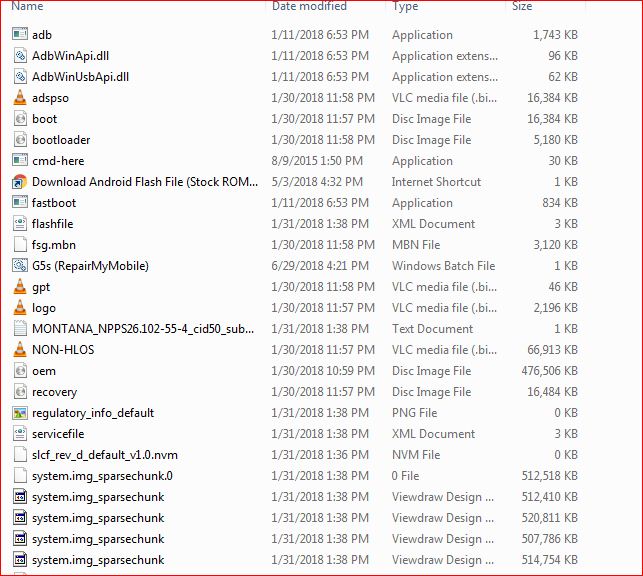
4- Switch off Phone & Hold Power + Volume Down. Then, connect phone to PC using USB cable, it will make Android Port in device manager.

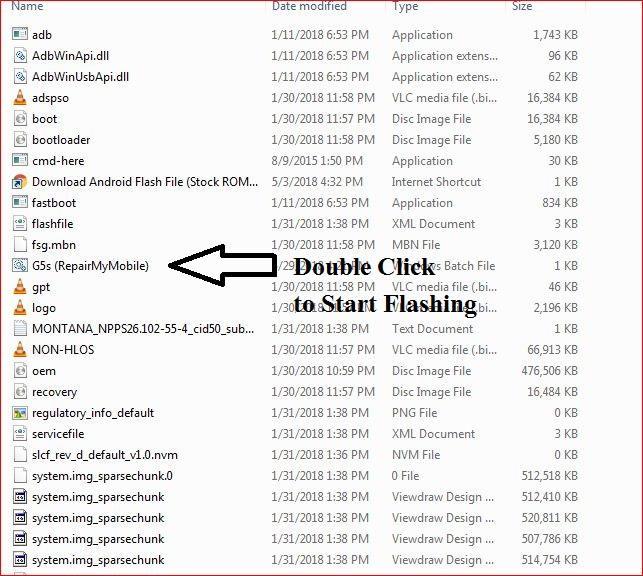
5- Now, Double Click on XT1677_RepairMyMobile bat file to start flashing.
Download Vivo V11 PD1813F Flash File:
Install MTK Driver.
1- Download the package & Extract SP Flash tool.
2- Out of the icon appearing, Double click on Flash_tool.exe
3- it will launch the tool on your PC, Click on Scatter-Loading appearing on the Right side of the tool.
4- Now, assign the firmware which will be in form “Android_scatter.txt”.
5- Click on Download to start flashing.
6- Switch off your Mobile and Connect it to PC by pressing Volume down or Volume up key.
7- It will lead you to Successful Flashing
Download Lava A1200 Flash File:
Install MTK Driver.
1- Download the package & Extract SP Flash tool.
2- Out of the icon appearing, Double click on Flash_tool.exe
3- it will launch the tool on your PC, Click on Scatter-Loading appearing on the Right side of the tool.
4- Now, assign the firmware which will be in form “Android_scatter.txt”.
5- Click on Download to start flashing.
6- Switch off your Mobile and Connect it to PC by pressing Volume down & Volume up keys if it fails then connect without pressing any key in off mode.
7- It will lead you to Successful Flashing