• Skip to primary navigation
  • Skip to main content
  • Skip to primary sidebar
RMM logo 2
Get All Flash File
Menu
  • Home
  • Training
    • Offline Training
      • Kolkata
      • Kolhapur
      • Patna
    • L1: Basic Software & Hardware
    • L2: Advanced Software & Hardware
    • L3: Super Advanced UFS
    • iPhone Training
  • Solution
    • Flash File
    • Flash Tool
    • Driver
    • Combination
    • FRP
    • Root
    • Hard Reset
    • Hardware
  • Premium Flash File
    • Premium Flash File
    • Fast Download Server
    • Android Dump Files
  • Join Demo Classes
  • Log In
  • Home
  • Training
    • Offline Training
      • Kolkata
      • Kolhapur
      • Patna
    • L1: Basic Software & Hardware
    • L2: Advanced Software & Hardware
    • L3: Super Advanced UFS
    • iPhone Training
  • Solution
    • Flash File
    • Flash Tool
    • Driver
    • Combination
    • FRP
    • Root
    • Hard Reset
    • Hardware
  • Premium Flash File
    • Premium Flash File
    • Fast Download Server
    • Android Dump Files
  • Join Demo Classes
  • Log In
You are here: Home / Archives for How To

How To

How to fix software problem in Android phone

May 1, 2024 Leave a Comment

If you are using android phones for a period of time, software problems are quite common. Most of the software issues can be sorted out easily and there is no need to visit a repair shop. 

Software problem can arise from following: 

  • Android OS
  • Apps
  • Storage
  • Downloading from Unauthorized websites.
How to Fix Software Problem in Android Phone

Techniques to fix software problems in Android Phones:

Android OS: 

Always use official updates for the phones. Whenever any update is available, you will get notified by the phone as System update Available. Install it. Never use any Custom OS as they are not official and in order to install it. You have to root the device, which voids its warranty. Most of the time, devices become unstable after installing Custom OS. 

Apps: 

There can be times when an App keeps on crashing, won’t open or respond. In order to resolve the issue: 

  • First check Internet Connectivity.  
  • Restart the Phone. 
  • Update all of the Apps from Google Play Store. 
  • Force Stop the App. In order to do so, Open Setting-> Apps -> App Management. Then open the App, and choose Force Stop. 
  • Clear App Cache & Data – To clear App cache and data, open Setting-> Apps-> App Management. Then Open the App and choose Storage usage and then clear data & cache. It will reset the App. 
  • Sync Device with Google Server: Open Date & Time App from System setting and Turn off Automatic Time Zone & Automatic Date & time. Choose any incorrect Date & Time. Atlast, Turn ON Automatic Time Zone & Automatic Date & time. 
  • Reinstall the App. 

Restore Factory Setting:

is the process of restoring the phone to its default state; anything causing issues will be deleted. It results in data loss.

  • Open Setting. 
  • Lookout for System Setting-> Backup and Reset. 
  • Choose Reset Phone. 

Storage:

If you are using a phone over a period of time it will have many files and documents which may affect the performance of the device. As a result it can lead to software crashes. It can be resolved by clearing files and documents. 

Downloading files and pirated software can come with malware & virus. As a result, apps can start on their own and opening chrome can load ads that will affect the overall performance of the device. 

Flashing:

is the process of reinstalling Android OS. If a phone has been affected by malware or virus, none of the methods will work except flashing. 

It is an ultimate process to repair any of the software problems within the phone and it works 100 percent. 
Filed Under: How To

How to Reset Android Phone when Locked

April 29, 2024 Leave a Comment

How to Reset Android Phone when Locked

If you have forgotten the pattern or password of your android device and are unable to unlock the pattern and password. Then, you have to factory reset the device. It is used to fix mobile software issues and clean out the memory of the phone.

Whenever you are selling the phone its appropriate to reset the device to its factory setting. 

Factory reset makes the device to its default state as it deletes all the data and apps on the phone. Only apps which come with the system are left out. 

Prerequisite: Make sure to remember gmail credentials that have been used to login. After Factory reset, it will ask for gmail credentials.   

Using the hardware buttons to reset/ Hard reset

In order to unlock the android phone, we have to hard reset the device. It deletes all the data within the phone. 

Note: If you have a connected Gmail account, then logging with the same gmail will restore the data. 

Factory Reset Xiaomi Phones: 

  • Make sure the device is charged at least 30 percent. 
  • Switch off device. 
  • Hold Power and Volume up key until the phone vibrates. 
  • In recovery mode, choose Wipe Data. 
  • Reboot the device. 

Factory Reset Oneplus Phones: 

  • Make sure the device is charged at least 30 percent. 
  • Switch off device. 
  • Hold Power and Volume down until the phone vibrates. 
  • In recovery mode, choose Wipe Data. 
  • Reboot the device. 

Factory Reset Samsung Phones:

  • Make sure the device is charged at least 30 percent. 
  • Switch off device. 
  • Hold Power, Home  and Volume UP until the phone vibrates. 
  • In recovery mode, choose Wipe Data. 
  • Reboot the device. 

Factory Reset Oppo Phones:

  • Make sure the device is charged at least 30 percent. 
  • Switch off device. 
  • Hold Power and Volume down until the phone vibrates. 
  • In recovery mode, choose Wipe Data. 
  • Reboot the device. 

Factory Reset Vivo Phones:

  • Make sure the device is charged at least 30 percent. 
  • Switch off device. 
  • Hold Power and Volume UP until the phone vibrates. 
  • In recovery mode, choose Wipe Data. 
  • Reboot the device. 

Using Google’s Find My Device feature: 

Another method to reset your phone is by using Find My Device to erase and unlock the phone. 

It is a security update that helps to trace the device location, lock or wipe data remotely. This feature is mostly used when we lose our phone. 

Note: The device must be in sync with Google Find My Device apps. 

  • Open Find My Device on your PC. Login with the same Gmail account that is being used on your phone. 
  • Select your device, if you have multiple devices and click on Factory Reset device. 
  • There will be a prompt. Click on Next.
  • It will ask for a Gmail Password. As soon as you enter the password and click on next. 
  • It will delete all the data and the device location will be lost. 

Filed Under: How To

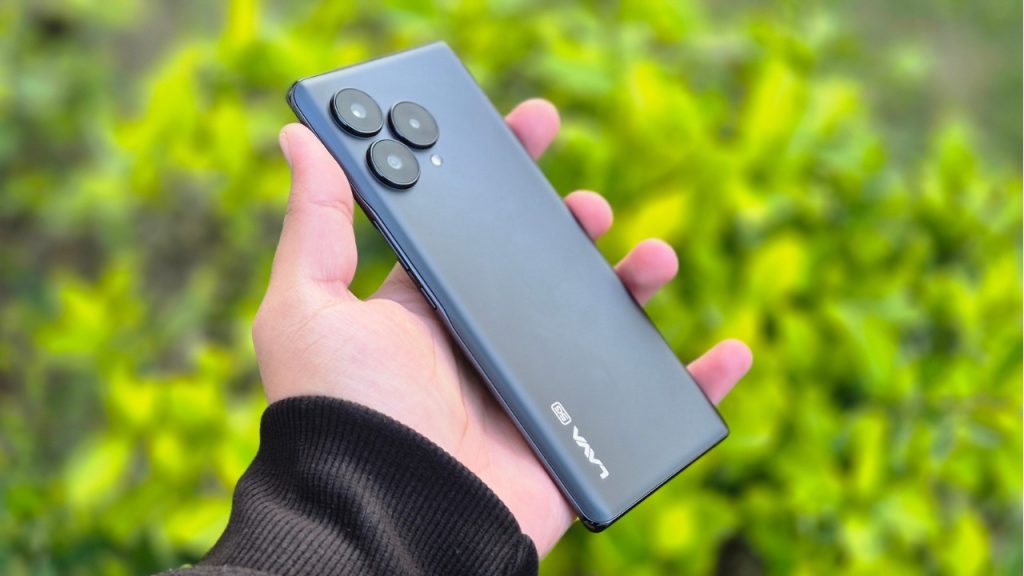
Lava Phone Hang Solution

April 23, 2024 Leave a Comment

lava phone hang solution

If you are using a Lava smartphone for a long period of time. Things which are quite obvious are phones getting hanged and performance starts to degrade. 

Possible Reasons: 

Running too many apps at the same time: We use many Apps on the phone in one go. After switching to another App, earlier Apps run in the background. As a result, much of the resources or RAM is being used and in turn it slows down the phone. 

Leaving apps running in the background: Always make sure to close all apps running in the background. As, it gets stored and executed by RAM and if your phone has RAM of up to 4GB. Much of its resources are being used by OS & Opened Apps. 

Internal Storage Full: Always try to have 20 percent of internal storage free. In today’s world, almost every lava smartphone user has messaging apps like WhatsApp and it stores media files. Over a period of time, it can account for most of the internal storage space resulting in slow performance and hanging. 

Software Updates: it is recommended to install official updates for lava smartphones. As it improves performance, stability and security of the device. Ignoring software updates can lead to hanging, as new updates are bug free.

Using Phone during charging: can lead to heat up device & hang. 

Malware or Virus: if you are downloading movies or cracked software from the internet. It usually leads to malware and viruses and can degrade the performance. 

Hardware issue: can be repaired only by repairing or replacing the faulty parts. For example if you are not using the official charger to charge the phone. Then, over the period of time the battery will degrade and the charging port can be damaged. 

Overheating: if a device is getting heated then it’s appropriate to not use the device as it will shut down on its own to protect its components. 

Possible Solution: 

Restart the Phone: A simple restart frees up ram as it kills all apps in the background. After getting started, all of the resources are free to use. 

Internal Storage: make sure to keep 25% of internal storage free as it ensures smooth functioning of the phone. 

Unused Apps: Uninstall unused apps. It will increase storage which is free to be used. 

Disable Background Apps: Disabling or closing background apps free up resources. It ensures smooth functioning of the lava smartphones. 

Update OS & Apps: if any official update are released for your device then make sure to install it as the new patch has been designed for stability, increasing performance & security of the device. 

Factory Reset: is the process of restoring the phone to its original state. It deletes all of the data within the phone. 

Check for Malware or Virus: It is always good to perform a scan of your lava phones using reputable Malware or virus scanner. One quick tip to identify malware, ads will popup of its own. 

Flashing: is the ultimate solution to get rid of any software issue, malware and viruses from the device. It reinstall Android OS on the device and the device gets reset to its original state. 

Clear cache: can free up space, improve performance and fix app problems. In order to clear the cache, you have to open the App from settings. Then, open the app and then clear the cache.

Filed Under: How To

Hanging issue on Your Phone??? 10 Solutions

April 22, 2024 Leave a Comment

mobile hang issue

We all are using android phones and it has become an essential part of our daily life. While, we rely on our phone for day to day tasks. According to reports from Datareportal, we Indians spend around 4 hours 5 minutes on mobile phones.

If a phone hangs often, it can result in anxiety and frustration. As it can negatively impact the day to day task.

Why Android Phone Hangs?

Running too many apps at the same time: We use tons of apps in our day to day life based on our requirements. One issue with android phones is that, when we open another app. The previous app does not get closed on its own. Running more apps at a time can use much of its resources. 

Leaving apps running in the background: the ideal situation is to close apps after being used. But, that is not the case and all of the apps which have been used keep running in the background as it uses most of its resources.

Ignoring software updates: Whenever official updates are being rolled out for devices, always install. As it improves performance and stability of the device.

Phone Storage: If your phone storage is almost full, it can be due to photos, videos and other media files stored on the device. If most of the storage is used, it will slow down the phone and can lead to hang. 

Using Phone during Charging: can lead to heating issues and cause hang. 

Outdated operating System: Not all phone manufacturers provide lifetime OS updates, most of them provide 2-3 Android version updates. So, over a period of time phone android OS will get outdated and phones will not be able to provide smooth functioning of new apps. 

Malware or virus: if you are downloading files from torrents or using cracked versions of any tools. It can lead to unwanted malware and viruses which will cause chaos and the phone will not work smoothly.

Hardware issues: if your phone has software issues, 9it can be sorted out by reinstalling android os. But, Hardware issues can be repaired only by replacing or repairing parts. Even a single hardware issue can result in hanging. 

Poorly Designed Apps: It is recommended to download apps from playstore. If you are using any 3rd party apps, it can result in hanging lead to slow down its performance. 

Overheating: If a phone is overheating, it will automatically shutdown to protect its components. 

Solution: to resolve the issue

Restart the phone: A simple restart resolves most of the issue as it clears caches and frees up resources as it automatically kills apps running in the background. 

Free up storage space: In today’s world, we use social media and Whatsapp. Over a period of time, they account for most of the storage on the device. Either clear cache and remove media within the apps. Make sure to have 20% space free, it will optimise performance of the device. 

Uninstall unused Apps: Now-a-days Android suggests us to remove unused apps on the phones. As it allocated more free storage increasing its performance. 

Disable background apps: If you are not using an app and it is running in the background. Make sure to close it, as it frees up resources and enhances performance. 

Update OS & Apps: Updating your device to the latest OS increases stability and performance of the device. Updating Apps to its latest version adds new features and makes it bug free. As any update let it be OS or Apps is developed with its predecessors bugs in mind. 

Factory reset: is the process of restoring a phone to its original state. As it deletes all of the data. This process works 9 out of 10 times. 

Check for Malware or virus: A malware or virus disrupts the smooth functioning of the phone. Getting unlimited ads on the phone is a sign of malware. So use any reputable malware or antivirus to scan the internal & external storage of the phone. 

Flashing: is the process of reinstallation of Android OS. It solves 100 percent of the software issue but is hard to perform. 

Clear cache: can free up space, improve performance and fix app problems. In order to clear the cache, you have to open the App from settings. Then, open the app and then clear the cache.  

Power Saving mode: Most of the android phone has power saving mode. As soon as you enable it, it reduces resources used by the phone and improves battery performance. 

If none of the solutions resolve the issue, then you can visit any authorised mobile repairing shop. They can diagnose the issue and repair your phone to get rid of hanging issues. 


Filed Under: How To

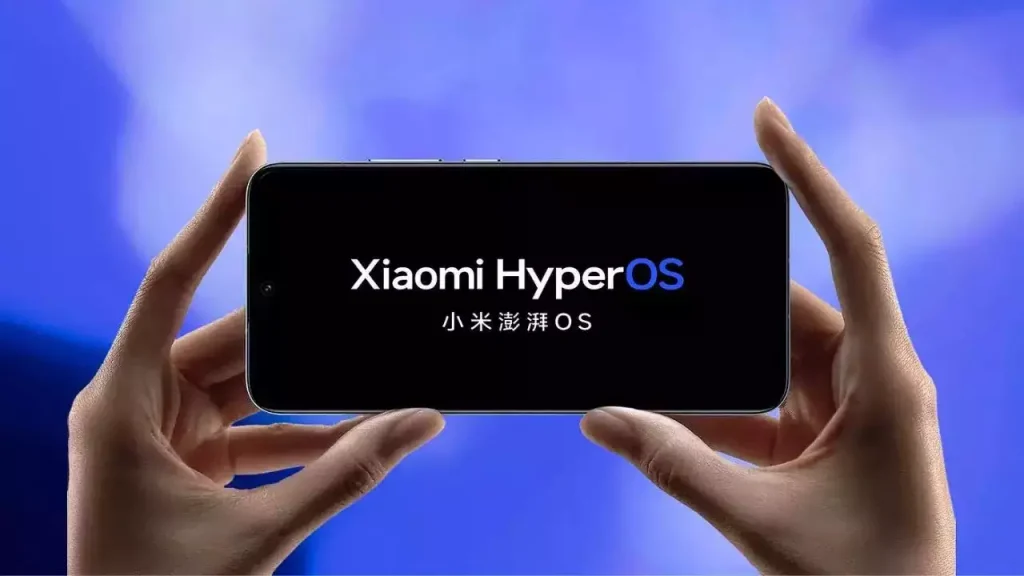
How to Remove Bloatware/System Apps From Xiaomi’s HyperOS using Mobile

April 9, 2024 Leave a Comment

xiaomi hyperos

Xiaomi has released their new Miui skin called HyperOS. It offers a range of new features & functionality and is more advanced compared to its predecessor. Like any other operating system, it comes with preloaded apps and bloatware which can account for more occupied storage and in return can slow the performance of the device. 

In this article, we will see steps to debloat and remove bloatware from HyperOS to increase the storage and improve the performance of the device. 

What is Bloatware?

It refers to preinstalled apps that have been added to the OS by its manufacturer or carrier. Most of the apps are useful but some of them are rarely used. Removing unused or unnecessary apps from the device can free up storage, improve performance and battery life. 

How to Identify Bloatware on Xiaomi HyperOS: 

  • Apps that duplicate functionality and are already provide by OS
  • Apps that are rarely used
  • Apps that display tons of ads

How to remove Bloatware from Xiaomi HyperOS:

Method 1: Uninstalling Apps

The easiest way to remove Bloatware is by uninstalling the apps directly from the device. 

  • Open Setting.
  • Scroll down or search for Apps.
  • Select the App you want to uninstall. 
  • Tap on uninstall or disable to remove it from the device. 
  • Follow the on-screen prompt to confirm the uninstallation. 

Method 2: Using LADB Connect tool from playstore

  • Download and install LADB tool. 
  • Enable developer option and then enable wireless debugging. 
  • Launch LDAP tool and note down the Port & pairing code displayed on the screen. 
  • Open Wireless Debugging menu and click on pair device. Use code copied from the previous step. 
  • Once Wireless debugging is connected. We have to use adb command to uninstall the system apps. 
  • ADB command is adb shell pm uninstall -k –user 0 <package_name>, (replace with the package name of the app you want to uninstall)
  • In order to get package name, Open the app on playstore and share it https://play.google.com/store/apps/details?id=com.instagram.android&hl=en_IN&gl=US. Bold letter in the link is the package. 

Method 3: Rooting your Xiaomi Device

Rooting any android phone provides full administrative access, it allows us to remove any of the system apps and bloatware that are otherwise inaccessible. However, rooting voids warranty and even cause OS crash. 

If you are still looking to root your device, you can use popular rooting software like Magisk, SuperSU, and KingRoot.  

Filed Under: How To

SAMSUNG NETWORK FAULT SOLUTION

April 19, 2022 Leave a Comment

Reasons for SAMSUNG NETWORK FAULT SOLUTION –


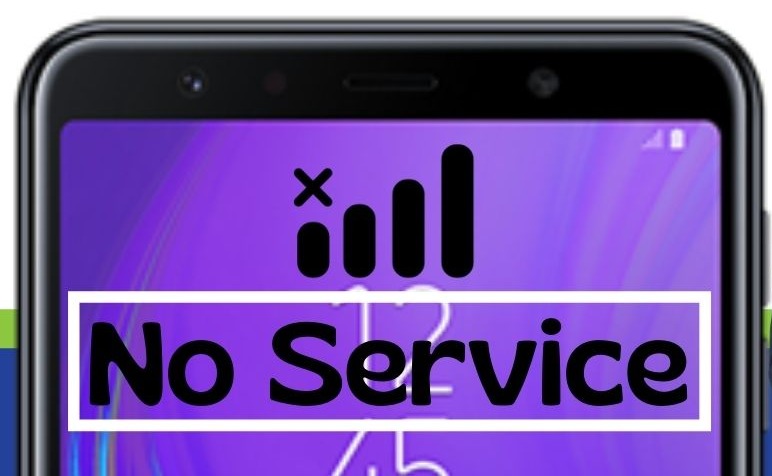
WTR is the main network IC of Samsung Mobile. If any network related issues are coming in mobile. Then WTR IC is reposnsible for. Fixing or repairing and someting replacing the IC can solve the No Service or Network issue. The major cause which is responsbile for mobile signal issue are listed below.

SAMSUNG NO SERVICE NETWORK
                                             SAMSUNG NO NETWORK


   1. Accidental Case/ Drop Down – If the phone is dropped  and signal line & supply line breaks then it might cause network issue.  To fix this  we have to use schematic  Samsung mobiles diagram to see all our missing components value and replace it with same value components to repair it. Schematic diagrams of Samung can be easily seen in Borneo Schematic.

   2. WATER DAMAGE –

When the handset is water affected the first thing we should do before cleaning is to check all the area on our motherboard which might be affected. Whether  there is any kind of sorting or not.  If there are sorting then clean the motherboard or replace all the damaged components. After water damage if cleaning done immediately would damage the mobile further.

      3. ONLINE UPDATE –

When our phone starts taking auto update and the download file path is corrupted. Then in this case Samsung mobile has to be flashed with Odin tool using 4 File. You must select the correct version binary file else after flashing mobile will not start. To prevent the network fault while updating make sure mobile has minimum of 20Gb of free spaces and battery must be fully charged


Filed Under: How To

  • Page 1
  • Page 2
  • Go to Next Page »

Primary Sidebar

Join Free Demo Classes!!!

Free demo classes
demo group

Recent Posts

  • Infinix HOT 30i X669D Dead Boot Repair File
  • Samsung S25 FE 5G SM-S731B Flash File (Stock ROM)
  • Samsung Galaxy A17 5G SM-A176b Flash File (Stock ROM)
  • Samsung Galaxy F17 5G SM-E176b Flash File (Stock ROM)
  • Tecno Spark Go 2024 BG6m Flash File (Stock ROM)

RMM Other website & App

training.repairmymobile.co

RMM Android App

Join Telegram Group

Repair My Mobile

Our Services

Privacy Policy

Term & Condition

Contact us

About us

Sitemap

Join Our Community

Facebook Youtube Instagram Linkedin Twitter Whatsapp

Contact

sidhartha@repairmymobile.co

+91-9060 2999 19

Mon-Sat:10:00am to 6.00pm

Official QR Code

Official Payment no.

Course: 8935939022

Call/WhatsApp: 91-893-593-9022

Paypal: vijaytech89@gmail.com


Note: Repair My Mobile
Official Payment no.

Bakarganj, Patna, Bihar 800004

Payment Partner

Copyright © 2025 RMM. Designed by RMM All rights reserved.

Click to Chat