• Skip to primary navigation
  • Skip to main content
  • Skip to primary sidebar
RMM logo 2
Get All Flash File
Menu
  • Home
  • Training
    • Offline Training
      • Kolkata
      • Kolhapur
      • Patna
    • L1: Basic Software & Hardware
    • L2: Advanced Software & Hardware
    • L3: Super Advanced UFS
    • iPhone Training
  • Solution
    • Flash File
    • Flash Tool
    • Driver
    • Combination
    • FRP
    • Root
    • Hard Reset
    • Hardware
  • Premium Flash File
    • Premium Flash File
    • Android Dump Files
  • Membership Account
  • Log In
  • Home
  • Training
    • Offline Training
      • Kolkata
      • Kolhapur
      • Patna
    • L1: Basic Software & Hardware
    • L2: Advanced Software & Hardware
    • L3: Super Advanced UFS
    • iPhone Training
  • Solution
    • Flash File
    • Flash Tool
    • Driver
    • Combination
    • FRP
    • Root
    • Hard Reset
    • Hardware
  • Premium Flash File
    • Premium Flash File
    • Android Dump Files
  • Membership Account
  • Log In
You are here: Home / Archives for Android Flash File Database

Android Flash File Database

iTel A41 Plus Flash File (Stock ROM)

December 27, 2018

Download iTel A41 Plus Flash File to install Android OS on your phone.

Summary:

1- Firmware Information
2- Download
2.1: Firmware: A41Plus-U269P-6.0-IN-V008-20180403
2.2: Flash Tool: SPD_Upgrade_Tool_R4.0.0001
2.3: Driver: SPD Driver
3- How to Flash iTel A41 Plus

1- Firmware Information: 

 Device Name iTel A41 Plus
 OS  Android
 Version  MarshMallow
 SOC  Spreadtrum
 Language  Multi Language
 Root Access  Not Rooted
 GApps  Included

2- Download

Firmware: A41Plus-U269P-6.0-IN-V008-20180403

Flash Tool: SPD_Upgrade_Tool

Driver: SPD Driver

3- How to Flash iTel A41 Plus:

Install SPD Driver
1- Download the package & Extract Flash tool.
2- Out of the icon appearing, Double click on UpgradeDownload.exe.
3- It will Launch the tool on PC.
4- Click on Load Packed button & Select the Firmware with extension .pac at end.
5- Click on Downloading button which is at third position.
6- Switch off your Mobile & connect it to PC using boot key.
7- It will lead you to Successful flashing.

Filed Under: Android Flash File Database

Ziox Astra Blaze Flash File (Stock ROM)

December 22, 2018

Download Ziox Astra Blaze Flash File to install Android OS on your phone.

Summary:

1- Firmware Information
2- Download
2.1: Firmware: Ziox_Astra_Blaze_V07_18102017
2.2: Flash Tool: SPD_Upgrade_Tool_R4.0.0001
2.3: Driver: SPD Driver
3- How to Flash Ziox_Astra_Blaze

1- Firmware Information: 

 Device Name Ziox Astra Blaze
 OS  Android
 Version  Nougat
 SOC  Spreadtrum
 Language  Multi Language
 Root Access  Not Rooted
 GApps  Included

2- Download

Firmware: Ziox_Astra_Blaze_V07_18102017

Flash Tool: SPD_Upgrade_Tool

Driver: SPD Driver

3- How to Flash Ziox Astra Blaze:

Install SPD Driver
1- Download the package & Extract Flash tool.
2- Out of the icon appearing, Double click on UpgradeDownload.exe.
3- It will Launch the tool on PC.
4- Click on Load Packed button & Select the Firmware with extension .pac at end.
5- Click on Downloading button which is at third position.
6- Switch off your Mobile & connect it to PC using boot key.
7- It will lead you to Successful flashing.

Filed Under: Android Flash File Database

LYF Jio F220B Flash File (Stock ROM)

December 20, 2018 Leave a Comment

Download LYF JIO F220B Flash File to install KAIOS OS on your phone. Flash File can be used to reinstall OS which solves any issue related to software in phone. It also reset the pattern or unlock code.

Summary:

  • Jio F220B Flash File
  • Flash Tool
  • Boot Key
  • How to flash LYF F220b
  • What if flashing does not starts
  • Related Topics

Jio F220B Flash File

  • LYF-F220B-003-01-69-170322
  • LYF-F220B-003-01-63-231121 
  • LYF-F220B-003-01-50-091120 
  • LYF-F220B-003-01-45-051119

Flash Tool

  • QFlash Tool

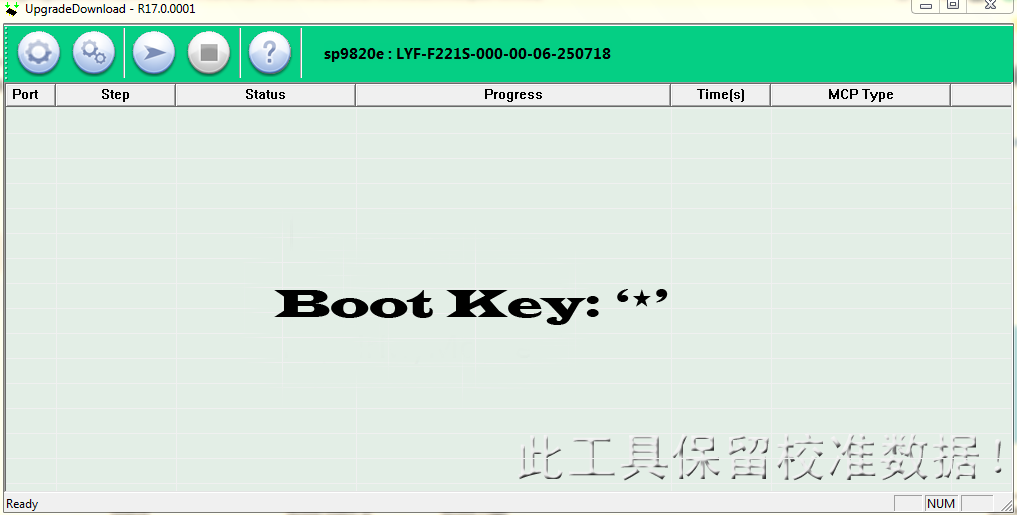
Boot Key: ‘*’

How to Flash LYF JIO F220B:

1- Download LYF F220b Flash file which consists of File, tool & Driver.
2- Install Driver
3- Connect Phone holding Boot key: * mode to cross-check driver installation. It will make port named “Qualcomm HS-USB Diagnostics 9008”
4- It means the driver has been installed successfully.
5- Install Flash Tool, which will install a shortcut on Desktop named Qflash_Tool_9.1.6.

6- Connect phone (Press * as Boot key)& Click on Load Content and from Flash File Folder select Content.xml


7- It will show Port in tool.
8- Click on Download Content to start Upgrading.


9- Wait till done appears.
10- After upgradation, device will shift to download mode.
11- Disconnect Phone & reinsert battery.

What if flashing does not starts:

If flashing Fails or does not start, then there must be a gap between the words while choosing flash file. Rename the folder.

As in Qualcomm Flashing, there must be no gap in between the words.

jio new should be replaced by jio_new or jionew.

Related Topics:

Imp: Jio Phone Next LS1542QWN Flash File

Latest News: LYF F320B Flash File Listed at RepairMyMobile.

Note: Steps to Enable Diag Port in Jio Phones

Filed Under: Android Flash File Database

Xiaomi Mi 8 Lite (Youth) Miui 12 Flash File (Stock ROM)

December 18, 2018

Download Xiaomi Mi 8 Lite Flash File:

For Mi Account Whatsapp @ 8935939022

  • platina_global_images_V12.0.3.0.QDTMIXM_20200914.0000.00_10.0_global
  • platina_global_images_V11.0.1.0.QDTMIXM_20200310.0000.00_10.0_global| Android 10
  • platina_global_images_V11.0.8.0.PDTMIXM_20200106.0000.00_9.0_global | Miui 11
  • platina_global_images_V11.0.7.0.PDTMIXM_20191213.0000.00_9.0_global | Miui 11
  • platina_global_images_V11.0.5.0.PDTMIXM_20191022.0000.00_9.0_global | Miui 11
  • platina_global_images_V10.0.5.0.ODTMIFH_20181204.0000.00_8.1_global
  • Xiaomi Flash tool

How to Flash Xiaomi Mi 8 Lite:

Download Xiaomi Mi 8 Lite Flash File
1- Connect phone through USB cable to PC and unplug battery.
2- Short Test Point and connect battery.
3- Under Device Manger, port of Qualcomm HS USB QLoader 9008 port will appear.
4- Download & run MI Flash Tool
5- Place the Flash File on Desktop.
6- Assign the Folder path.
7- Click on refresh & then tap Flash button.

Filed Under: Android Flash File Database

Download QGDP Tool (Latest: Supports Qualcomm & MTK)

December 12, 2018

Download QGDP Flash Tool:

  • QGDP_Tool_Assembly_V3.2.0: Download
  • QGDP_Tool_Assembly_v3.1.9: Download
  • QGDP_Tool_Assembly_v3.1.8: Download
  • QGDP_Tool_Assembly_v3.1.6: Download
  • QGDP_Tool_Assembly_v3.1.4: Download
  • QGDP_Tool_Assembly_v3.0.7: Download
  • QGDP_Tool_Customer_V1.0.0: Download
  • QGDP-MTK1744-ASE-v.3.2.0: Download
  • QGDP_Tool_SMT_v3.1.6: Download
  • QGDP_Tool_SMT_v3.1.8: Download
  • QGDP_Tool_SMT_v3.2.6: Download

Only Qualcomm & MTK CPU can be flashed using QGDP tool.
1- Download the latest QGDP tool.
2- Install ADB driver & MTK Driver.
3- Now, connect mobile to PC.
4- Open device manager and confirm your mobile has been identified by PC.
5- Unzip tool and run the setup.
6- When tool interface appears, enter Username=admin & Pass=123456 as password.
7- Click on Login to use the tool.

QGDP tool interface
8- Click on Config and select CPU model.
9- Click on CPB file and assign the path of firmware.
10- Switch off Mobile, connect it to PC using USB cable.
11- Click on start.
12- Flashing starts and when completed Cell 0 will turn in to green color.

Filed Under: Android Flash File Database

Micromax Q437 GO Flash File (Stock ROM)

December 11, 2018

Download Micromax Bharat GO Q437 Flash File to install Android OS on your phone.

Summary:

1- Firmware Information
2- Download
2.1: Firmware: MMX_Q437_GO_SW_V14_HW_V1.0_20180404
2.2: Flash Tool: SP_Flash_Tool_v5.1824
2.3: Driver: MTK Driver
3- How to Flash Micromax Q437 GO

1- Firmware Information: 

 Device Name Micromax Bharat GO Q437
 OS  Android
 Version  Oreo
 SOC  Mediatek
 Language  Multi Language
 Root Access  Not Rooted
 GApps  Included

2- Download

Firmware: MMX_Q437_GO_SW_V14_HW_V1.0_20180404

Flash Tool: SP_Flash_Tool_v5.1824

Driver: MTK Driver

3- How to Flash Micromax Bharat GO Q437:

Install MTK Driver.
1- Download the package & Extract SP Flash tool.
2- Out of the icon appearing, Double click on Flash_tool.exe
3- it will launch the tool on your PC, Click on Scatter-Loading appearing on the Right side of the tool.
4- Now, assign the firmware which will be in form “Android_scatter.txt”.
5- Click on Download to start flashing.
6- Switch off your Mobile and Connect it to PC by pressing Volume down or Volume up key.
7- It will lead you to Successful Flashing
Filed Under: Android Flash File Database

  • « Go to Previous Page
  • Page 1
  • Interim pages omitted …
  • Page 405
  • Page 406
  • Page 407
  • Page 408
  • Page 409
  • Interim pages omitted …
  • Page 603
  • Go to Next Page »

Primary Sidebar

Membership
Support

Advance Software & Hardware Training

Free demo classes

Recent Posts

  • Moto G96 XT2531-2 Flash File (Stock ROM)
  • iTel P451 Flash File (Stock ROM)
  • iTel Aqua IT6133 Flash File (Stock ROM)
  • iTel IT5620a Flash File (Stock ROM)
  • iTel IT5608n Flash File (Stock ROM)

RMM Other website & App

training.repairmymobile.co

RMM Android App

Join Telegram Group

Repair My Mobile

Our Services

Privacy Policy

Term & Condition

Contact us

About us

Sitemap

Join Our Community

Facebook Youtube Instagram Linkedin Twitter Whatsapp

Contact

[email protected]

+91-9060 2999 19

Mon-Sat:10:00am to 6.00pm

Official QR Code

Official Payment no.

Course: 8935939022

Call/WhatsApp: 91-893-593-9022

Paypal: [email protected]


Note: Repair My Mobile
Official Payment no.

Bakarganj, Patna, Bihar 800004

Payment Partner

Copyright © 2025 RMM. Designed by RMM All rights reserved.

    Join UFS Training: super advanced course


      UFI, Easy Jtag और हार्डवेयर: Advance Android Training


        Join L1 Software: ऑनलाइन ट्रेनिंग